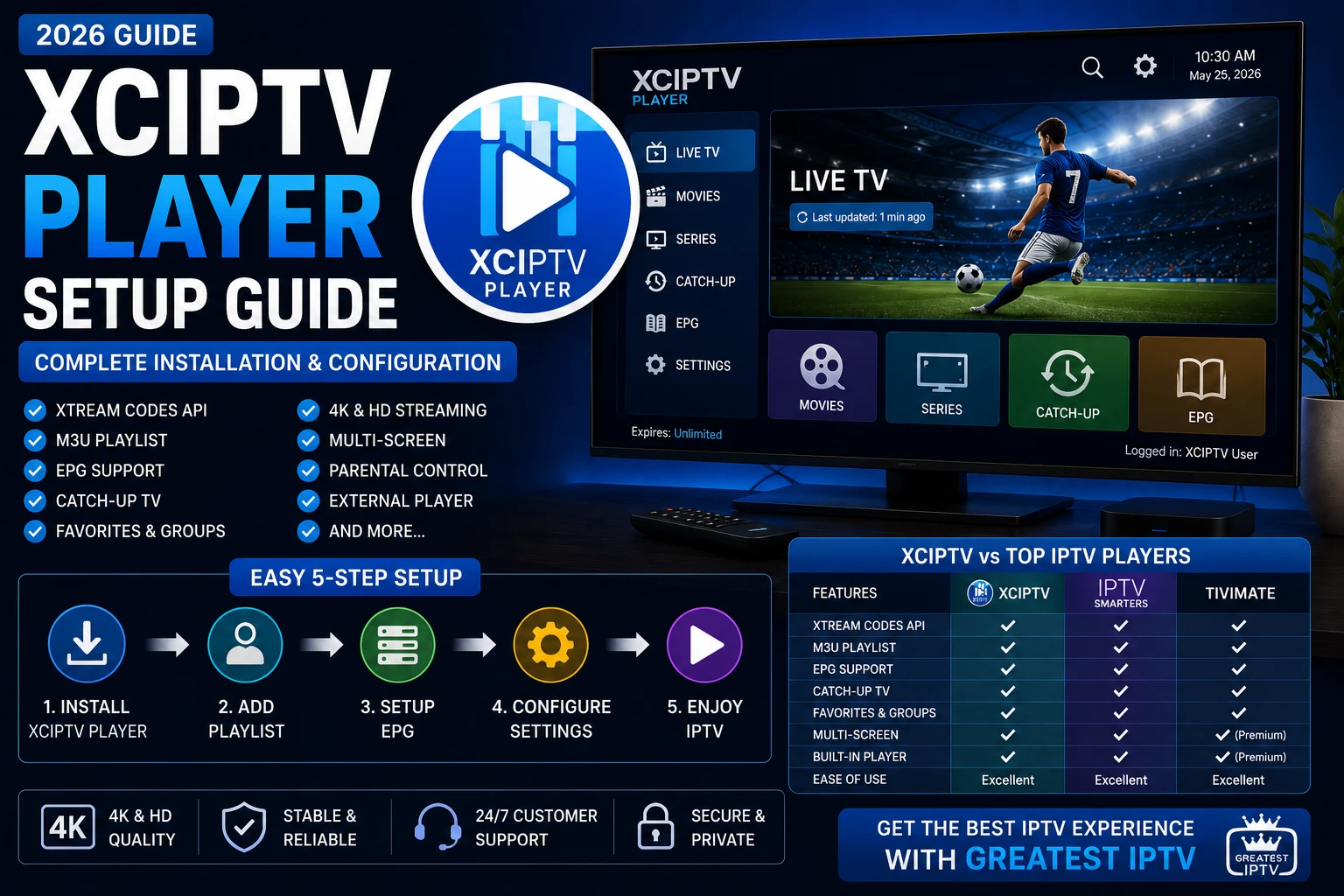
How do you set up XCIPTV Player in 2026?
To set up XCIPTV Player in 2026, install the app on Android TV, Firestick, or Google TV, log in with Xtream Codes API or add an M3U playlist, sync the EPG, confirm catch-up support if your provider offers it, choose the right video player settings, and optimize playback for your network.
XCIPTV works best when it is paired with a stable subscription source. That is why users often use Greatest IPTV as the practical subscription example: a good player becomes much more useful when the source behind it is organized, reliable, and easier to support.
People searching for xciptv player setup are usually not looking for a vague app summary. They want working steps. They want to know whether XCIPTV is worth using, how it compares with IPTV Smarters Pro and TiviMate, how to add xciptv xtream codes or an xciptv m3u playlist, what to do about EPG and catch-up, and how to solve the playback errors that tend to show up after installation.
This guide is built around that practical intent. It focuses on real setup outcomes, not generic app praise. You will learn how XCIPTV fits into the current IPTV player landscape, which devices it works best on, how to configure the core login methods, and how to tune the app for smoother daily streaming. If your home uses several devices, this page also pairs naturally with the Best IPTV Apps for Smart TV comparison, the TiviMate setup guide, the Windows player guide, and the Mac player guide.
What is XCIPTV Player?
XCIPTV Player is a TV-oriented IPTV app built for users who want a lightweight, practical way to watch live channels, video-on-demand sections, and guide-based programming through provider credentials. Like other IPTV players, it is not a subscription service itself. It is a playback interface that reads IPTV data delivered through account login methods such as Xtream Codes or M3U playlists.
Its reputation comes from being relatively fast, clean enough for daily use, and often easier on mid-range hardware than heavier interfaces. That makes it especially attractive to users who care more about responsive performance than about ultra-deep customization.
XCIPTV features that matter in real use
Many app comparisons list features without explaining why they matter. The most useful way to evaluate XCIPTV is to look at how each feature affects real daily viewing.
Fast navigation
XCIPTV is often chosen because it feels quicker than heavier interfaces on moderate hardware and lower-cost TV devices.
Xtream and M3U support
The app works with the two most common IPTV login methods, which keeps setup flexible for different providers.
EPG and catch-up compatibility
Guide and replay behavior depend on provider data, but XCIPTV can present them well when the source is configured correctly.
External player flexibility
Users who want an alternate playback engine can often improve device-specific results by tuning the external player path.
XCIPTV is also attractive when you are trying to avoid overcomplicating the setup. TiviMate is often stronger for guide power users, and IPTV Smarters Pro is often easier for broad household onboarding, but XCIPTV is a solid middle ground when speed and practicality come first.
Comparison table: XCIPTV vs IPTV Smarters vs TiviMate
This table focuses on the differences that affect actual setup and long-term comfort, not just marketing-style feature lists.
| App | Advantages | Disadvantages | Supported devices | Ease of use | Streaming quality handling | Best use case |
|---|---|---|---|---|---|---|
| XCIPTV | Fast, lightweight feel, practical navigation, good on moderate hardware | Less premium-looking than TiviMate for guide-heavy users | Android TV, Fire TV-style setups, boxes, Google TV | High | Very good with stable credentials and clean streams | Users who prioritize speed and responsiveness |
| IPTV Smarters Pro | Very approachable setup flow, familiar menus, broad cross-device reach | TV-first polish is not as strong as TiviMate for power users | TV, desktop, and mobile ecosystems | Very high | Strong with reliable provider credentials | Beginners and mixed-device households |
| TiviMate | Premium guide experience, excellent organization, long-term comfort | Premium features matter more, deeper setup can feel heavier | Android TV, Google TV, many Fire TV-style environments | High after setup | Excellent with strong sources | Users who want the most polished TV-first workflow |
The main lesson from this comparison is not that XCIPTV replaces every alternative. It is that XCIPTV earns its place when stable speed matters more than the deepest interface customization. For many real-world setups, that is exactly the right tradeoff.
Expert takeaway: XCIPTV is often the best fit when you want a player that feels lighter than TiviMate but more purpose-built than a generic media app. The better your provider data and support, the more that advantage shows up in daily use.
How to install XCIPTV on Android TV
Android TV is one of the most natural XCIPTV environments because the app fits well with remote navigation and typical Android-based IPTV workflows.
- Open your Android TV app source and install XCIPTV.
- Launch the app and review the initial login paths before entering credentials.
- Choose Xtream Codes API or M3U playlist depending on your provider.
- Allow the app to load channels, categories, and supporting metadata fully.
- Configure EPG and test category navigation before changing advanced options.
If you want broader technical context on Android TV app behavior, the official Android Developers TV documentation is still the most useful neutral reference.
How to install XCIPTV on Firestick
Firestick users often choose XCIPTV because it tends to stay responsive on hardware where bloated apps feel slow. The installation logic is similar to Android TV, but hardware limits matter more.
- Install XCIPTV using your normal Fire TV workflow.
- Open the app and choose your preferred login method.
- Import credentials carefully and wait for the first sync to finish.
- Test live channels before enabling any extra playback complexity.
- Use external player support only if your default playback behavior needs improvement.
For broader device context, the official Amazon Fire TV resources are useful when your playback expectations differ across Fire TV generations. You can also compare this setup flow with the dedicated Firestick IPTV guide.
How to install XCIPTV on Google TV
Google TV users usually care about app polish, category speed, and how well the player behaves within a more modern home-screen environment. XCIPTV can work well here when the login data is clean.
- Install XCIPTV using your Google TV app flow.
- Choose Xtream Codes or M3U depending on the subscription details you received.
- Sync channels and EPG before testing navigation performance.
- Check whether guide and catch-up data appear as expected.
- Adjust playback only after testing multiple streams and categories.
The official Google TV support documentation can help when device-level settings affect app behavior differently from Android TV boxes.
How to add Xtream Codes API in XCIPTV
XCIPTV Xtream Codes setup is often the cleaner path for users who want structured account login without manually juggling raw playlists.
- Open XCIPTV and choose the Xtream Codes API option.
- Enter the server URL, username, and password exactly as provided.
- Let the app load channels, VOD sections, and groups fully.
- Check whether guide data appears after the initial sync.
- Save the account with a clear label for easier management later.
When Xtream Codes fails, the issue is often one incorrect field rather than a player defect. Careful typing matters more than aggressive troubleshooting at this stage.
How to add an M3U playlist in XCIPTV
An XCIPTV M3U playlist setup is still common, especially when providers use playlist-based delivery as the default account format.
- Select the playlist or M3U option in XCIPTV.
- Paste the M3U URL or upload the M3U file if your provider supplied one.
- Name the playlist so it is easy to recognize if you add more later.
- Wait for the first sync and category load to finish fully.
- Attach the EPG source if it is separate from the playlist.
- Test multiple categories before tuning extra playback settings.
M3U setups work well when the playlist and guide data are clean. If the source is badly structured, no player can fully hide that weakness.
EPG setup and catch-up TV in XCIPTV
Guide behavior is where a setup starts to feel polished or unfinished. XCIPTV can handle EPG data effectively when the source is correct, but users often misdiagnose provider-data issues as app errors.
- Check the device timezone before troubleshooting the guide.
- Verify that the EPG source matches the playlist or account.
- Allow sync time before deciding the guide failed.
- Test several channel groups, not just one category.
Catch-up TV is different. It depends entirely on whether your provider supplies replay windows on the channels you are testing. XCIPTV can expose the feature, but it cannot create missing replay data. That is one reason users see better consistency when they use a more dependable source like Greatest IPTV instead of lower-quality subscription panels.
External video player settings in XCIPTV
One of XCIPTV’s useful traits is that it can fit into a more flexible playback workflow. Some users keep the internal player, while others choose an external player path when a specific device behaves better that way.
Use default first
Test the internal player before changing anything. Many users overcomplicate playback before they verify the basic setup.
Switch only for a reason
If one device struggles with a codec or stream behavior, an external player can help. Otherwise, added complexity may not improve anything.
Validate multiple channels
Do not judge playback quality from one failing stream alone. Test several categories and resolutions first.
Keep the workflow simple
The more moving parts you introduce, the harder troubleshooting becomes later.
Best XCIPTV settings for smoother streaming
There is no universal perfect profile, but there is a smart order of operations. Start with a clean install, stable credentials, and an organized category structure before touching advanced playback behavior.
Settings that usually help
- Use wired internet when possible on primary viewing devices.
- Keep your groups and favorites clean.
- Update the app and device firmware regularly.
- Test in real evening conditions, not just low-traffic hours.
- Use our IPTV buffering guide if playback still drops.
Settings mistakes to avoid
- Changing many playback options at the same time.
- Ignoring router congestion or poor Wi-Fi placement.
- Assuming every issue is caused by the app alone.
- Leaving dozens of unused channel groups visible.
- Skipping support when you are uncertain about the credential type.
Common XCIPTV errors and fixes
Most XCIPTV complaints fall into a short list of causes: credential mistakes, poor provider data, guide mismatch, unstable internet, or unrealistic expectations about device performance.
Login fails immediately
Check the server URL, username, and password character by character. Xtream login failures are often simple entry mistakes.
Channels load but the guide is missing
Verify EPG mapping, account data, and timezone before changing player settings.
Playback buffers during live events
Test your internet first, then the provider stream quality. A fast interface cannot solve an unstable source alone.
Catch-up does not appear
Confirm that your provider actually offers catch-up on the channels you are testing. XCIPTV cannot expose replay content that does not exist upstream.
The app feels slow on one device but not another
That usually points to device hardware, storage pressure, or firmware differences rather than a global XCIPTV issue.
Voice-search friendly quick answers
How do I set up XCIPTV? Install the app, choose Xtream Codes or M3U login, sync EPG, test channels, and optimize playback after the first full sync completes.
What is XCIPTV best for? XCIPTV is strongest for users who want a lightweight, responsive IPTV app that still supports guide, replay, and account-based workflows.
Is XCIPTV better than IPTV Smarters or TiviMate? It depends on your goal. XCIPTV is often lighter and faster, Smarters is often easier for broad onboarding, and TiviMate is often more polished for long-term guide-heavy use.
FAQ: XCIPTV Player setup
XCIPTV Player is used to watch live IPTV channels, guide data, and related IPTV content through provider login credentials on compatible streaming devices.
Choose the Xtream Codes API option in XCIPTV, then enter the server URL, username, and password exactly as your provider supplied them.
Select the playlist option, paste the M3U link or upload the file, then wait for categories and channels to sync fully.
Yes, XCIPTV supports EPG when the guide source is correct and the provider data is mapped properly.
Yes, but only if your IPTV provider offers catch-up on the relevant channels and the source data is configured correctly.
Yes. XCIPTV is commonly used on Firestick and similar devices, especially when users want a lightweight app experience.
Yes. XCIPTV can work well on Google TV when the source credentials and guide data are configured properly.
XCIPTV is often preferred for a lighter, faster feel, while TiviMate is often preferred for a more premium guide and organization workflow.
IPTV Smarters Pro is often easier for beginners and broader multi-device use, while XCIPTV is often chosen for speed and lighter resource use.
Buffering is often caused by network congestion, stream instability, or provider-side source quality rather than the app interface itself.
In many cases, yes, depending on your provider plan and simultaneous-connection rules.
Final recommendation: should you use XCIPTV in 2026?
If your goal is a practical, responsive IPTV player that feels lighter than some premium-heavy alternatives, XCIPTV is still a strong option in 2026. It is especially appealing on mid-range hardware, Firestick-style devices, and setups where speed matters more than maximum interface depth.
That said, XCIPTV is only one part of the outcome. The source behind it determines whether the experience feels stable or frustrating. If you want the app to show its strengths, pair it with a dependable provider source such as Greatest IPTV rather than a weak panel that creates messy guides, unreliable channels, and constant support tickets.
When you are ready, compare plans on Pricing, activate via Checkout, or ask for help through Contact. If you are also evaluating broader platform choices, the TiviMate setup guide and the Smart TV app comparison are the best next reads.