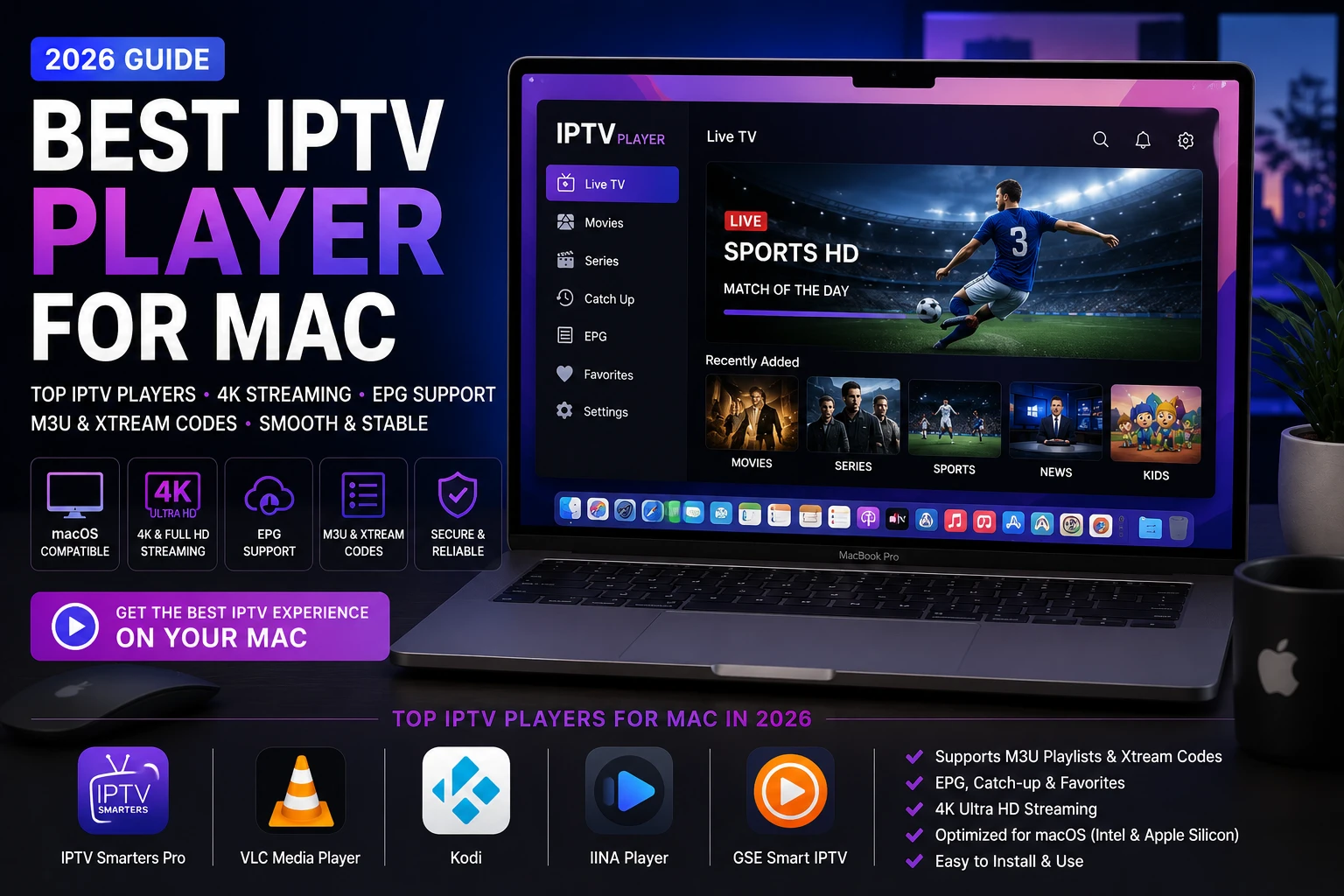
What is the best IPTV player for Mac in 2026?
The best IPTV player for Mac in 2026 depends on how you actually use your Mac: IPTV Smarters Pro is convenient for many everyday users, VLC is still one of the most reliable lightweight options, Kodi is strongest for deep customization, GSE Smart IPTV is useful for users who want multi-format flexibility, and IINA Player is attractive for Mac-first users who value a polished native feel.
The important point is that a player app does not create channels on its own. It displays content from your subscription credentials. That is why the strongest real-world setup combines a good player with a reliable IPTV source such as Greatest IPTV, not just the app with the loudest reviews.
Mac users often approach IPTV differently than Android TV or Fire TV users. On macOS, the conversation is less about whether the app can be installed at all and more about whether the app handles playlists cleanly, decodes streams efficiently, supports guide data without lag, and feels comfortable on a desktop or laptop display for long viewing sessions. People searching for iptv player for mac or best iptv app for mac usually want a dependable workstation, travel, or home-office setup rather than a living-room-only interface.
That context matters because not every famous IPTV player is equally strong on macOS. Some of the biggest names in IPTV, including TiviMate, SmartOne IPTV, Smart IPTV, IBO Player, and XCIPTV, are excellent in TV-based environments but are not the first choice for native Mac workflows. If your goal is to watch IPTV on Mac with fewer compromises, you need to judge apps by macOS usability, codec handling, M3U or Xtream support, EPG behavior, and how smoothly they fit into Apple hardware habits.
This guide is built for that exact decision. It covers the major macOS IPTV player options, explains how to set up M3U playlists and Xtream Codes login correctly, outlines EPG and 4K expectations, and shows how to avoid the mistakes that create most playback complaints. If you also stream on other platforms, it pairs naturally with our Best IPTV Player for Windows guide and the broader Best IPTV Apps for Smart TV comparison.
Why use an IPTV player on macOS?
MacBooks, iMacs, Mac minis, and external monitor setups give IPTV users a different kind of control. You can work with a large screen, stable Wi-Fi or Ethernet, better keyboard navigation, and full desktop resource management. For many users, that leads to a smoother experience than low-cost streaming hardware.
Better playback visibility
A Mac desktop or laptop display makes it easier to manage guides, playlists, and categories without the friction of a TV remote-only interface.
Improved network diagnostics
macOS gives you clearer control over internet tests, VPN behavior, DNS changes, and app permissions than many closed TV platforms.
Flexible viewing styles
You can watch IPTV at a desk, on a second screen, in full-screen mode, or while traveling with a MacBook instead of being limited to one TV.
Stronger file and playlist handling
If you use M3U files, EPG XML links, or multiple subscription profiles, macOS often makes organization easier than set-top environments.
There is also a practical business angle. If you manage multi-device setups or plan to expand into service distribution, the IPTV reseller program becomes easier to understand when you already know how players and credentials behave across platforms. That is one reason advanced users often compare Mac, Windows, and Smart TV workflows together rather than in isolation.
Best IPTV players for Mac in 2026
The five apps below are the most practical starting points for a serious macOS IPTV player setup. Each one solves a different problem, which is why choosing by use case is more useful than choosing by popularity alone.
IPTV Smarters Pro for Mac
IPTV Smarters Pro is one of the easiest paths for users who want a familiar IPTV workflow without deep technical setup. It is practical for people who already use Smarters on another device, because the navigation language and login expectations feel consistent. That consistency matters when you want your Mac, TV, and mobile environment to work similarly.
Its biggest strengths are onboarding clarity and day-to-day usability. If your main priority is fast activation and a clean interface for live TV, categories, and guide navigation, Smarters is a strong candidate. If you want exact app setup instructions, our IPTV Smarters Pro setup guide remains the best follow-up resource.
VLC Media Player
VLC continues to be one of the most dependable answers when users ask for a m3u player for mac. It is lightweight, widely trusted, and extremely strong at codec compatibility. VLC is not the most visually specialized IPTV interface, but if your priority is fast, stable playback with minimal bloat, it is hard to ignore.
For users who do not need elaborate IPTV dashboards, VLC often feels refreshingly simple. That simplicity is especially useful on older Macs or travel setups where efficient decoding matters more than design extras. The official VideoLAN VLC documentation is also useful if you need version-specific behavior or supported format references.
Kodi
Kodi is the advanced-user option. It can become much more than an IPTV player: media center, add-on hub, and content organizer all in one. If you want granular control over views, libraries, integrations, and playback behavior, Kodi gives you room to build a highly customized stack.
The trade-off is time. Kodi asks more from the user than a lightweight player does. If your goal is to get from subscription to playback in ten minutes, it may feel like overkill. If your goal is to build a robust multi-purpose media environment, it becomes one of the strongest long-term options. The official Kodi project site is the right authority reference for current platform and add-on behavior.
GSE Smart IPTV
GSE Smart IPTV remains relevant because it balances playlist flexibility with a familiar IPTV-specific structure. Many users appreciate that it is purpose-built enough to feel like an IPTV app rather than a general media player, yet not so heavy that it becomes difficult to manage. It is especially useful for users who prefer dedicated playlist management and account-style workflows over generic media playback logic.
On Mac, its value depends on how much you care about IPTV-specific organization. If you want a player that feels closer to a purpose-built IPTV environment, GSE Smart IPTV deserves serious consideration.
IINA Player
IINA is one of the most Mac-friendly options aesthetically and behaviorally. It feels closer to what many Apple users expect from a modern macOS media app. If visual polish, clean keyboard controls, and a native-feeling interface matter, IINA is easy to like.
Its limitation is not raw playback quality so much as workflow depth. Some users need the extra IPTV-specific structure they get from Smarters, GSE, or Kodi. But if your setup is mainly clean playlist playback and you care about staying within a Mac-first design language, IINA’s official site is worth reviewing.
What about TiviMate, SmartOne IPTV, Smart IPTV, IBO Player, and XCIPTV?
These are well-known IPTV players, and they deserve to be mentioned because many users search for them while evaluating Mac options. The important clarification is that they are most often stronger in Smart TV, Android TV, or box-based workflows than in native macOS use. They are excellent to understand if your household also streams on TV hardware, which is why our Smart TV IPTV app comparison covers them in more detail. For Mac-first use, native-friendly players usually make more sense.
Comparison table: best IPTV app for Mac in 2026
This table focuses on the metrics users actually care about when they compare the best IPTV app for Mac: advantages, disadvantages, supported devices, ease of use, streaming quality behavior, and best use cases.
| App | Advantages | Disadvantages | Supported devices | Ease of use | Streaming quality handling | Best use case |
|---|---|---|---|---|---|---|
| IPTV Smarters Pro | Simple onboarding, IPTV-oriented interface, consistent across multiple device types | Less flexible than Kodi for advanced customization | Mac, Windows, mobile, selected TV ecosystems | Very high | Strong with stable provider credentials and clean EPG mapping | Most users who want fast setup and clear daily use |
| VLC Media Player | Lightweight, trusted, broad codec support, excellent for M3U playback | Limited IPTV-specific dashboard features | Mac, Windows, Linux, mobile variants | Medium | Very stable playback, especially on lighter systems | Users who prioritize speed and reliability |
| Kodi | Deep customization, powerful media center features, strong long-term flexibility | Higher learning curve and more setup time | Mac, Windows, Linux, Android, TV boxes | Medium | Excellent when configured correctly | Advanced users and media enthusiasts |
| GSE Smart IPTV | Purpose-built IPTV workflow, useful playlist and account handling | Depends on preferred interface style and version behavior | Mac and Apple ecosystem use cases | High | Good to very good with organized playlist sources | Users wanting IPTV-specific structure |
| IINA Player | Mac-native feel, clean UI, smooth playback experience | Less IPTV-specific workflow depth than dedicated apps | Mac | High | Very good for polished desktop playback | Mac-first users who value native UX |
The table makes one thing clear: no single player is automatically the best in every scenario. The right answer depends on whether you prioritize simple onboarding, native Mac design, advanced customization, or the lightest possible playback path. That is why it is more accurate to compare use cases than to chase one-size-fits-all rankings.
Expert takeaway: choose your Mac player based on workflow, then choose your subscription based on stream reliability and support. The player shapes usability. The provider shapes stability.
Step-by-step installation guide for IPTV on Mac
A careful installation process prevents most support issues. The setup flow below is designed for real users, not just experienced tinkerers.
1. Pick one primary app
Start with IPTV Smarters Pro, VLC, or IINA depending on your comfort level. Avoid testing several apps at the same time during first setup.
2. Update macOS first
Install the latest system updates and review relevant guidance in the Apple Mac User Guide to reduce compatibility surprises.
3. Prepare subscription credentials
Have your M3U link or Xtream Codes details ready before launching the player wizard.
4. Add the source and test channels
Import your source, load the categories, and test channels across different groups before customizing the interface.
5. Configure EPG and favorites
Assign guide data, set your timezone correctly, and build a favorites list for faster everyday use.
6. Optimize playback only when needed
Use structured diagnostics if playback stutters. Our IPTV buffering guide is the right place to start instead of changing multiple settings at once.
If your home also uses television-based setups, combine this page with the Smart TV player guide so your Mac and TV environments stay consistent. If you already know you want Smarters, go directly to the full IPTV Smarters Pro setup tutorial.
How to set up an M3U playlist on Mac
M3U is still one of the most common IPTV delivery formats, especially for users who want a simple import path. When people ask for the best m3u player for mac, they usually mean a player that handles these steps with minimal friction.
- Open your chosen player and locate the playlist import or open-network option.
- Paste your M3U URL or import the M3U file from local storage.
- Name the playlist clearly so it is easy to manage later.
- Load all channels and wait for the first indexing process to finish before testing.
- Add or sync the EPG source if it is separate from the playlist.
- Test multiple channel categories instead of judging quality from one stream only.
- Save favorites and remove unused categories to improve browsing speed.
If the list loads but guide data does not, the issue is often EPG mapping, timezone mismatch, or a wrong XML link rather than a broken player.
How to log in with Xtream Codes on Mac
Xtream Codes login is often cleaner than raw playlist management because it organizes credentials around server URL, username, and password. That structure can make maintenance easier over time.
- Choose the Xtream Codes API login option in your IPTV player.
- Enter your server URL, username, and password exactly as provided.
- Select output format if your player prompts for one.
- Allow the app to index live TV, VOD, and series sections fully.
- Verify EPG synchronization after the account data loads.
- Check whether catch-up TV appears if your subscription plan includes it.
- Run playback tests on SD, Full HD, and 4K-capable streams when available.
EPG support, catch-up expectations, and 4K streaming on Mac
EPG matters more than many users expect. A player can have smooth playback, but if the guide is incomplete or out of sync, the experience still feels unfinished. IPTV Smarters Pro, Kodi, and several dedicated IPTV players typically provide the strongest structured EPG workflows. VLC can still work well for playback, but it is usually not the guide-centric choice.
Catch-up TV is different. This feature depends heavily on the provider. If your subscription does not include catch-up, the player cannot invent it. If the provider does include it, your next job is to confirm whether the player surfaces those time-shifted controls clearly.
As for 4K, modern Apple silicon Macs can handle high-quality playback very well when the stream source is strong and the player is configured sensibly. Still, 4K performance depends on four factors working together:
- Stream quality from the provider
- Player codec and hardware handling
- Stable bandwidth at the moment you watch
- Clean local system performance without competing resource strain
That is one reason many Mac users choose a stable plan from the pricing page, then complete activation through checkout, and finally test under real evening viewing conditions rather than judging quality from a low-traffic afternoon session.
Voice-search friendly quick answers
Can I watch IPTV on Mac? Yes. Install a compatible macOS IPTV player, add M3U or Xtream Codes credentials, and connect to a reliable subscription source.
What is the easiest IPTV player for Mac? IPTV Smarters Pro is often the easiest starting point for everyday users because onboarding is straightforward.
Does VLC work as an IPTV player for Mac? Yes. VLC is one of the most reliable lightweight options for M3U playback on macOS.
Common problems and troubleshooting for Mac IPTV apps
Most playback complaints come from a short list of recurring issues, and they usually can be solved without reinstalling everything.
Do this first
- Verify your M3U link or Xtream credentials carefully.
- Restart the app and reload playlists after first import.
- Check your Mac network connection before blaming the player.
- Test multiple channels across different categories.
- Use our IPTV blog as a reference hub for setup and troubleshooting articles.
Avoid these mistakes
- Installing several players at once and mixing settings.
- Changing too many playback options before you isolate the real issue.
- Assuming every buffering event is caused by the app alone.
- Ignoring guide and timezone settings when EPG looks broken.
- Choosing the cheapest subscription without checking support quality.
If you already know your provider source is strong but a specific app still fails, your next step is not guesswork. It is a structured support check. That is where using the contact page can save more time than cycling through random workarounds.
Warnings and security tips for IPTV on Mac
Good streaming quality and good security usually go together. macOS is stable, but that does not mean every third-party app build or playlist source deserves trust.
Use official download sources
Where possible, download apps from official publishers or recognized storefronts rather than random mirror sites.
Keep macOS current
System updates can solve compatibility, permission, and playback issues that many users incorrectly blame on IPTV itself.
Protect your credentials
Treat M3U links and Xtream logins like account access, not casual text you share across public channels.
Test before scaling
If you plan to deploy across several devices or clients, validate one clean Mac setup before rolling out more widely.
Two additional notes matter here. First, some users expect every famous IPTV player to be equally strong everywhere, which is not true. Second, a polished Mac player still cannot rescue a weak provider source. That is why people comparing Mac, Windows, and TV workflows often land on a provider-first conclusion after the player comparison is complete.
Related searches Mac users commonly ask
- best iptv app for macbook pro
- macos iptv player with epg support
- how to watch iptv on mac without buffering
- best m3u player for mac in 2026
- xtream codes login on macos
- vlc vs kodi for iptv on mac
- best iptv player for apple silicon mac
- gse smart iptv for mac review
FAQ: best IPTV player for Mac in 2026
IPTV Smarters Pro is often the easiest starting point because setup is guided and the interface feels familiar to new users.
Yes. VLC is a dependable choice for M3U playback on macOS and is often one of the most stable lightweight options.
Yes, especially for advanced users who want deeper customization, a guide-focused workflow, and broader media-center features.
M3U is playlist-based, while Xtream Codes uses structured credentials such as server URL, username, and password for account-style login.
No. IPTV players are playback apps only. You still need active credentials from a subscription source such as Greatest IPTV.
Yes, if your Mac hardware, network, player, and provider stream quality all support it consistently.
VLC and IINA are strong options for users who prefer simple playback without an overloaded IPTV interface.
EPG issues are often caused by wrong guide links, timezone mismatch, or provider-side mapping problems rather than player failure alone.
In many cases, yes, depending on your plan terms and simultaneous-connection rules. That is why comparing Mac and Windows workflows together is useful.
Yes, especially if you prefer a more IPTV-specific workflow than a generic media player offers.
IINA often feels the most Mac-native from a design and control perspective, although it is not always the most IPTV-specific workflow.
Final recommendation: the best Mac IPTV setup in 2026
If you want the shortest path to a clean Mac experience, start with IPTV Smarters Pro. If you want lightweight stability and strong format handling, choose VLC. If you want maximum control and long-term flexibility, choose Kodi. If you prefer a more IPTV-specific account workflow, consider GSE Smart IPTV. If your top priority is a polished macOS-native feel, IINA is a serious option.
The bigger lesson is that the player is only one half of the outcome. Your provider controls stream reliability, guide consistency, and how much troubleshooting you will need later. That is why many users use Greatest IPTV as the subscription example when comparing apps: not because the player disappears, but because a dependable source makes good players perform the way they are supposed to perform.
When you are ready, compare plans on Pricing, activate through Checkout, or use Contact to confirm your Mac model and preferred player before you buy. If you want to understand the business side after you master the technical side, the IPTV Reseller page is the natural next step.