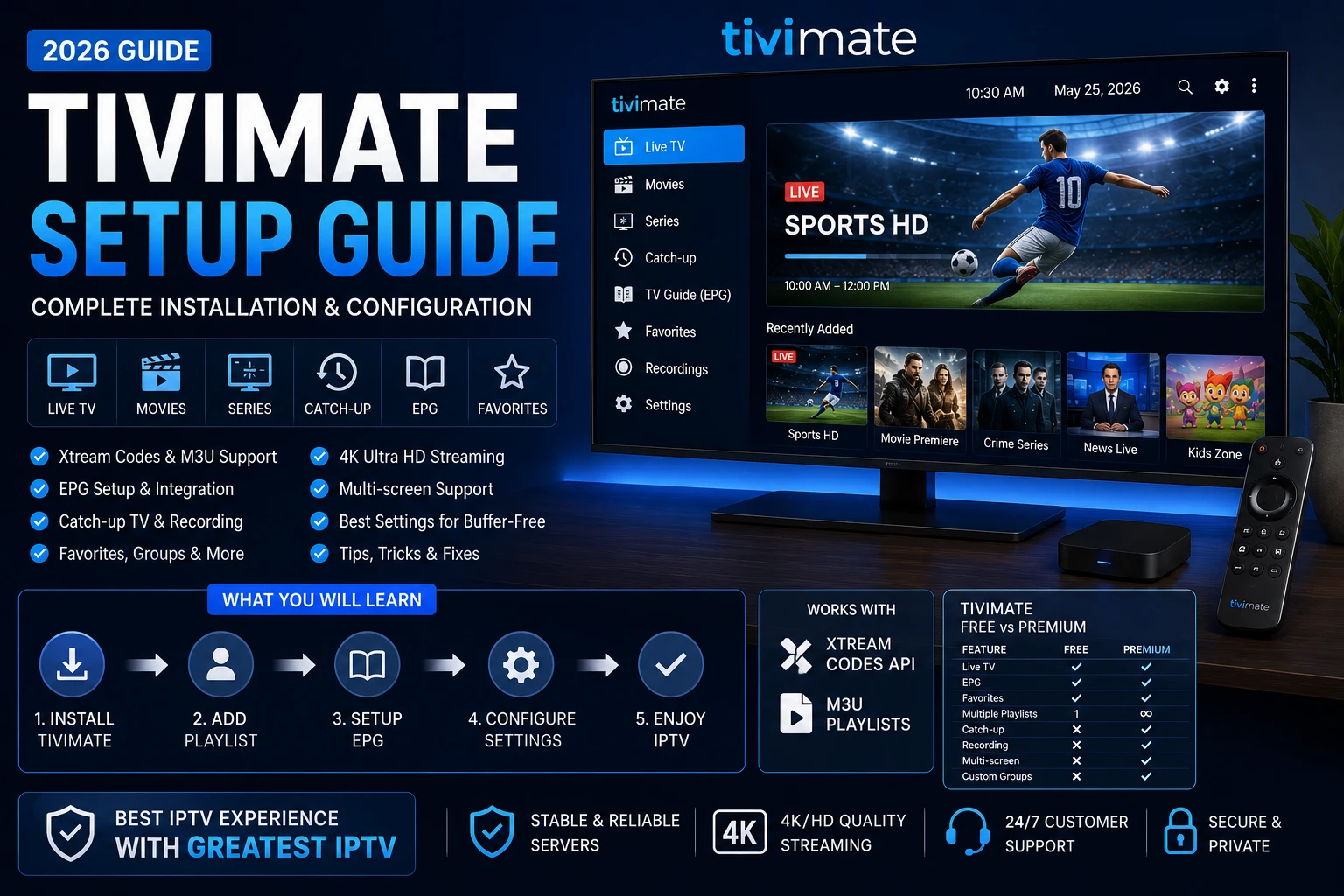
How do you set up TiviMate in 2026?
To set up TiviMate in 2026, install the app on a compatible Android TV or Fire TV device, choose either Xtream Codes API or an M3U playlist as your source, sync the EPG, organize favorites and groups, then optimize playback settings for your internet speed and screen type.
TiviMate works best when it is paired with a reliable IPTV subscription rather than random low-quality sources. That is why many users use Greatest IPTV as the subscription example when they want stable playlist delivery, cleaner guide behavior, and less daily troubleshooting.
Search intent around tivimate setup is different from general IPTV app searches. People looking for TiviMate are usually already aware that it is one of the strongest TV-first IPTV players. What they need now is not a vague app overview. They need exact installation steps, clear differences between Free and Premium, practical guidance on adding tivimate xtream codes or a tivimate m3u playlist, and real explanations for why EPG, recording, and multi-screen do not always work the way they expect.
This guide is written to solve those exact problems. It explains how TiviMate fits among other leading IPTV players, how to configure the app correctly the first time, and how to reduce the common playback, guide, and login errors that waste the most time. If your home uses multiple devices, this page also pairs naturally with the broader Best IPTV Apps for Smart TV comparison, our Windows player guide, and the newer Mac player guide.
What is TiviMate?
TiviMate is a television-focused IPTV player designed primarily for Android TV and compatible Fire TV-style streaming environments. It is not a subscription service. It is a player app that reads IPTV credentials and presents channels, categories, program guides, favorites, recordings, and account-based viewing tools in a layout designed for large screens and remote control use.
The reason TiviMate became so popular is simple: it feels like a real TV application rather than a stretched mobile app. Menus are cleaner, guide navigation is faster, and category control is much more comfortable than in many generic players. That difference becomes obvious after a week of actual use, especially in living-room setups where speed and remote friendliness matter more than flashy menus.
Why TiviMate is one of the best IPTV players
TiviMate is not the only strong IPTV player, but it is one of the few that consistently balances interface quality, feature depth, and long-term usability. That is why it appears so often in serious setup discussions.
TV-first interface
TiviMate feels built for remotes and large screens, which makes daily browsing noticeably faster than generic app layouts.
Strong EPG experience
Guide navigation, category sorting, and channel organization are among the reasons advanced users keep returning to TiviMate.
Premium feature depth
Recording, multi-screen, advanced favorites, and account-level convenience turn TiviMate into a serious long-term setup tool.
Better long-term comfort
Homes that watch sports, news, and entertainment every day usually feel the interface benefits more over time than on day one.
That said, TiviMate is not always the best first app for every household. Some users still prefer IPTV Smarters Pro because onboarding is simpler, while others choose lighter players on older hardware. The right decision depends on whether your priority is polished TV behavior, fast onboarding, or minimal resource use.
Where TiviMate fits among the best IPTV apps for Smart TVs
Because so many people compare TiviMate with other leading IPTV apps, the table below frames it against the alternatives users most often mention in the same buying journey.
| App | Advantages | Disadvantages | Supported devices | Ease of use | Streaming quality handling | Best use case |
|---|---|---|---|---|---|---|
| TiviMate | Premium TV-first interface, excellent EPG handling, strong organization tools | Premium features require upgrade; onboarding can feel deeper than simpler apps | Android TV, Google TV, many Fire TV-style setups | High after first setup | Excellent with clean provider sources and stable networks | Users who want a long-term primary TV interface |
| IPTV Smarters Pro | Very approachable setup flow, familiar menus, practical for mixed-device homes | TV-first polish is not as strong as TiviMate for advanced guide use | Android, Windows, Mac, iOS, TV environments | Very high | Strong with reliable credentials | Beginners and cross-device households |
| SmartOne IPTV | Simple channel viewing flow, practical TV-first behavior | Less depth for advanced category management | Smart TV ecosystems | High | Good for routine live viewing | Users who want lower complexity |
| Smart IPTV | Well-known name, traditional workflow, broad user familiarity | Older-feeling interface for some users | Smart TV ecosystems | Medium to high | Stable with clean sources | Users who prefer classic IPTV behavior |
| IBO Player | Modern look, balanced simplicity, practical responsiveness | Feature expectations vary by user and version | Smart TV ecosystems and compatible device setups | High | Good to very good with stable providers | Users wanting modern design without heavy complexity |
| XCIPTV | Fast loading, lightweight feel, strong on modest hardware | Not as premium visually as TiviMate | Android TV, boxes, many Fire TV-style environments | High | Reliable on moderate hardware | Performance-focused users and secondary-room setups |
Important context: all of these are players, not subscriptions. They display the streams your provider delivers. If the source is unstable, none of the apps above can fully compensate. If the source is stable, even a modest app can feel much better. That is why advanced users compare app UX and provider quality at the same time.
TiviMate Free vs Premium comparison
One of the biggest reasons people search for how to setup TiviMate is confusion over what the free version can actually do versus what becomes available after the premium upgrade. The comparison below makes the practical difference clearer.
| Feature | TiviMate Free | TiviMate Premium | Why it matters |
|---|---|---|---|
| Playlist management | Basic use | More complete long-term flexibility | Premium users usually get a smoother multi-playlist experience. |
| EPG controls | Basic | More advanced options | Guide-heavy viewers notice the difference quickly. |
| Recording | No practical full workflow | Yes | Important for users who want to save live programs. |
| Multi-screen | Limited or unavailable | Yes | Useful for sports fans and power viewers. |
| Favorites and advanced groups | Basic | More complete | Premium improves long-term navigation comfort. |
| Catch-up support behavior | Depends on source and limited workflow | Better integrated when source supports it | Important if your provider offers time-shifted viewing. |
| Best fit | Testing the interface | Building a serious daily setup | Most long-term TiviMate users end up preferring Premium. |
If you only want to sample the app, the free tier gives you useful exposure to the interface. If you plan to rely on TiviMate every day, Premium is where the app becomes a true TV management tool rather than just a basic player shell.
Practical rule: if you only want to test channel playback, free may be enough. If you want recording, multi-screen, deeper favorites control, and a real long-term setup, Premium is usually the version people end up keeping.
TiviMate installation guide in 2026
The right installation process matters because many users introduce problems before they ever load a channel. Use this sequence to keep things clean.
1. Confirm device compatibility
TiviMate is strongest on Android TV and similar environments. For technical ecosystem context, review the official Android Developers TV documentation.
2. Install TiviMate
Download the app through your normal device workflow and open it before entering any credentials so you can review the menu structure first.
3. Choose your source type
Decide whether you are adding Xtream Codes API details or an M3U playlist. Have the exact details ready before you continue.
4. Load channels and categories
Let the first sync finish fully before judging performance. Many users interrupt the loading phase too early and assume the app is broken.
5. Add EPG and check timezone
TiviMate feels much better once the guide is working properly. Confirm device timezone and provider guide mapping.
6. Organize favorites before daily use
Create favorites and hide unused groups early. A cleaner structure dramatically improves remote navigation.
If your household also uses Fire TV hardware, the Firestick IPTV guide gives useful platform-specific context, and the official Amazon Fire TV resources can help with broader device behavior. If you are comparing TiviMate with a simpler alternative, the IPTV Smarters Pro setup guide is the most relevant counterpoint.
How to add Xtream Codes API in TiviMate
Xtream Codes is often the cleaner way to set up TiviMate because it organizes account information more neatly than a raw playlist. Users also tend to make fewer formatting mistakes with it.
- Open TiviMate and select the option to add a playlist or account source.
- Choose the Xtream Codes API method.
- Enter the server URL, username, and password exactly as provided by your IPTV provider.
- Allow the app to load categories and channel data completely.
- Check whether the guide and VOD sections appear correctly.
- Save the source using a clear name so future management is easier.
If one field is wrong, TiviMate usually will not partially work. That is why this step rewards careful typing more than trial-and-error guessing.
How to add an M3U playlist in TiviMate
A tivimate m3u playlist setup is still common, especially for users whose provider delivers playlist URLs as the default option.
- Choose the playlist setup option inside TiviMate.
- Paste your M3U URL or use the file import path if your provider gave you a local file.
- Name the playlist carefully.
- Let the first sync finish without interruption.
- Add the guide source if it is separate from the playlist.
- Test several categories before changing advanced settings.
M3U works well when the provider delivers clean category and guide data. If the source is messy, TiviMate may still look better than weaker apps, but it cannot invent order where the playlist itself is poor.
TiviMate EPG setup
TiviMate EPG setup is where the app starts to feel premium. The guide is one of the main reasons people choose TiviMate in the first place, so this step deserves attention.
- Confirm the guide source is valid and linked to the right account.
- Set the correct timezone on the device before troubleshooting the guide itself.
- Allow the guide sync to finish instead of checking too early.
- Verify that channels and guide IDs are mapped correctly if only some groups fail.
- Reload the EPG only after you verify the underlying source details.
Many guide complaints are really provider-data issues rather than TiviMate failures. That is one reason a more reliable source like Greatest IPTV usually leads to a noticeably cleaner TiviMate experience.
Catch-up setup, favorites, and groups
Catch-up only works when the provider supports it. TiviMate can display and organize catch-up behavior, but it cannot create replay windows if the stream source does not supply them.
Favorites and groups, on the other hand, are where TiviMate shines every day. If you build them properly, you reduce channel-hunting fatigue and make the app easier for everyone in the home to use. That matters more than many people realize. Most long-term satisfaction with TiviMate comes from organization, not just raw playback.
Favorites
Pin your top channels early so sports, news, and daily entertainment stay one or two clicks away.
Groups
Hide categories you never use. Cleaner navigation creates a stronger premium feel than endless channel clutter.
Catch-up
Test only after confirming your provider actually offers replay support on that category or channel.
Daily usability
The best TiviMate setups are usually the best organized ones, not the most heavily customized ones.
Recording and multi-screen in TiviMate Premium
Recording is one of the features that most clearly separates TiviMate Premium from the free experience. If you want to save live programs, watch them later, or manage important events without depending only on live timing, Premium becomes much more compelling.
Multi-screen is equally valuable for some users, especially sports fans or households monitoring several channels at once. It is not a universal need, but for the people who want it, it is one of TiviMate’s strongest premium-use cases.
Before you rely on either feature heavily, test your storage path, stream stability, and general device performance under real viewing conditions. A premium feature is only useful if the full chain around it is stable.
Best TiviMate settings for smooth streaming
There is no single universal settings profile, but the best results usually come from a disciplined approach rather than aggressive tweaking.
Settings that usually help
- Use Ethernet where possible for primary living-room setups.
- Keep device time and timezone correct.
- Reduce guide clutter and unused categories.
- Update the app and firmware regularly.
- Test with one provider source before adding more complexity.
Settings mistakes to avoid
- Changing several playback options at once.
- Assuming more aggressive buffer adjustments always improve quality.
- Ignoring router congestion during peak evening traffic.
- Loading too many unnecessary groups into daily view.
- Judging quality from one bad channel alone.
If buffering is already a known issue in your home, the best next step is our dedicated IPTV buffering guide. It is a better diagnostic path than guessing which TiviMate setting is at fault. For mixed Android TV and Google TV environments, the official Google TV support documentation is also useful when playback behavior differs by hardware generation.
Common TiviMate errors and fixes
Most TiviMate problems come from one of five sources: wrong credentials, poor provider data, guide mismatch, unstable internet, or unrealistic expectations around unsupported features like catch-up or recording on weak hardware.
If your home includes Apple devices alongside Android-based streaming hardware, the official Apple TV support documentation is helpful for understanding mixed-device playback expectations even though TiviMate itself is primarily a TV-focused Android app.
Login does not work
Check the exact server URL, username, and password. Xtream Codes failures are often one-character mistakes, not application bugs.
Channels load but EPG is empty
Verify the guide link, timezone, and provider-side EPG mapping before touching advanced settings.
Playback buffers during live events
Test your network first, then check the provider source. A strong app cannot fully repair a congested or unstable stream source.
Recording fails
Confirm Premium access, storage permissions, and whether the channel stream itself remains stable for the full program duration.
Catch-up does not appear
Confirm your subscription actually includes catch-up on that channel. TiviMate can expose it, but it cannot generate missing replay content.
Voice-search friendly quick answers
How do I set up TiviMate? Install the app, add Xtream Codes or an M3U playlist, sync the EPG, organize favorites, and optimize playback settings for your device and network.
What is the best way to use TiviMate? Pair it with a dependable provider source, keep categories organized, and use Premium if you need recording, multi-screen, and deeper management features.
Does TiviMate work best with one type of login? Many users find Xtream Codes easier to maintain, but both Xtream and M3U can work well when the source data is clean.
FAQ: TiviMate setup guide
TiviMate is an IPTV player used to organize and watch live TV, guide data, favorites, and other IPTV content on TV-focused devices.
TiviMate offers a limited free experience, while Premium unlocks features such as recording, multi-screen, and deeper management tools.
Choose the Xtream Codes login method in TiviMate, then enter your server URL, username, and password exactly as provided by your IPTV source.
Select the playlist option, paste your M3U URL or import the file, then wait for categories and channels to load fully.
EPG issues are usually caused by incorrect guide links, timezone mismatch, or provider-side mapping problems rather than the app alone.
Yes, but recording is generally associated with TiviMate Premium and also depends on storage, permissions, and stream stability.
Yes, when the IPTV provider offers catch-up for the relevant channels and the source data is configured correctly.
TiviMate is often better for long-term TV-first usability, while IPTV Smarters Pro is often easier for new users and mixed-device households.
TiviMate is best known for TV-based environments. For desktop setups, use our Windows guide or Mac guide.
A reliable provider source matters more than hype. Greatest IPTV is a practical subscription example because stable source quality improves the entire TiviMate experience.
Buffering is often caused by network congestion or upstream source instability, not by the interface itself.
Final recommendation: should you use TiviMate in 2026?
If your priority is a polished TV-first IPTV experience, TiviMate is still one of the strongest choices in 2026. It handles guides well, rewards good organization, and becomes significantly more powerful once Premium features like recording and multi-screen matter to your setup. That is why advanced users continue to rank it highly even when many other players exist.
The bigger lesson, though, is that TiviMate performs best as part of a stable system. The app matters. Your subscription source matters just as much. If you want the best chance of smooth day-to-day viewing, pair TiviMate with a dependable IPTV source like Greatest IPTV, then complete the setup carefully instead of rushing through the first sync process.
When you are ready, compare options on Pricing, activate through Checkout, or ask for direct help through Contact. If you are exploring the business side after learning the technical side, the IPTV Reseller page is the natural next step.