Table of Contents
Introduction
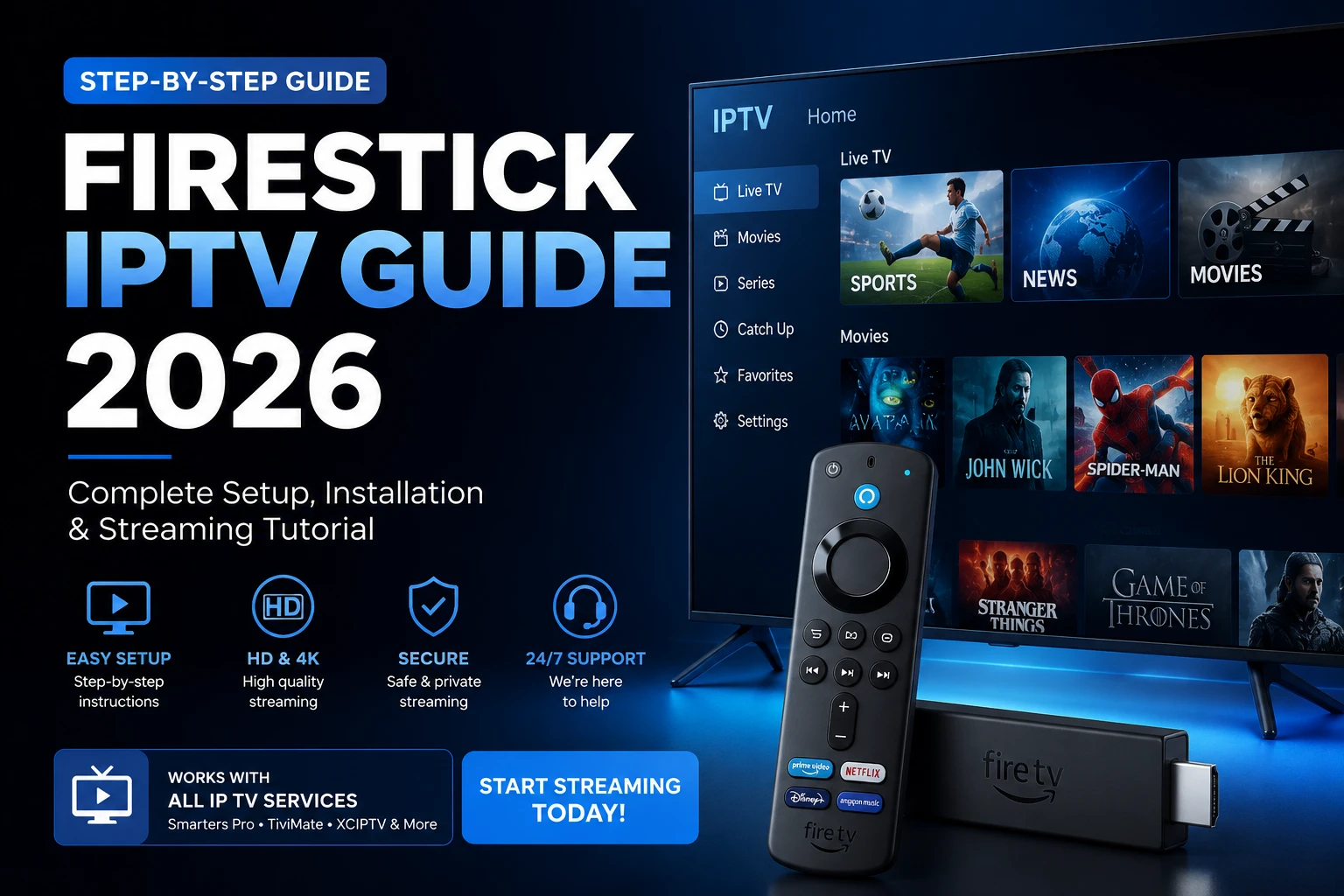
Amazon Fire TV Stick has become one of the most popular devices for streaming IPTV content worldwide. Whether you own a Firestick 4K, Firestick HD, or newer models, this comprehensive 2026 guide will walk you through every step of installing and configuring IPTV on your device.
By the end of this guide, you'll be streaming thousands of live channels, on-demand content, and premium programming directly through your Firestick. We've tested these methods extensively and optimized them for maximum performance, reliability, and ease of use. For more streaming solutions, explore our complete blog archive with additional guides and tutorials.
Why Firestick is Perfect for IPTV
Fire TV devices have earned their reputation as the best streaming devices for IPTV users. Here's why:
- Powerful Hardware: Modern Firesticks include quad-core processors capable of handling 4K streaming with minimal buffering
- Simple Installation: Unlike Android boxes, Firestick IPTV setup requires minimal technical knowledge
- Reliable Performance: Fire TV's operating system is optimized for streaming applications with exceptional stability
- Broad App Support: Access to IPTV Smarters Pro, Kodi, VLC, and other premium IPTV applications
- Regular Updates: Amazon continuously updates Fire TV devices with security patches and performance improvements
- Affordable: Competitive pricing makes Firestick the budget-friendly alternative to expensive smart TVs. Check out our affordable IPTV pricing plans to get started.
System Requirements
Before you start, ensure your setup meets these minimum requirements:
- Amazon Fire TV Device: Any Firestick model (HD, 4K, Max, or newer generations)
- High-Speed Internet: Minimum 15 Mbps for FHD, 25 Mbps for 4K content
- Stable WiFi or Ethernet: 5GHz WiFi recommended, or Ethernet adapter for wired connection
- Greatest IPTV Subscription: Active account with valid Xtream Codes or M3U credentials. Browse our best IPTV USA 2026 plans to find the perfect subscription for your needs.
- Firestick Remote: Original remote or compatible third-party remote for navigation
- 30 Minutes Setup Time: Allow uninterrupted time for installation and testing
Installing Downloader App
The Downloader app is the easiest method to install IPTV applications on Firestick. Follow these steps:
Step 1: Access the Amazon Appstore
Press the home button on your Firestick remote and navigate to "Apps". Click the magnifying glass icon to open the app search.
Step 2: Search for Downloader
Type "Downloader" in the search box. The official Downloader app by AFT Mods should appear at the top of results. Select it and press Enter. This method is also documented on Firestick Tricks for reference.
Step 3: Install Downloader
Click "Get" or "Download" to begin installation. The app will automatically install within 30 seconds. Once complete, press "Open" to launch Downloader.
Ready to Stream on Firestick?
Get instant access to thousands of IPTV channels with Greatest IPTV. Our technical support team is available 24/7 to help with setup and troubleshooting.
Installing IPTV Smarters Pro
IPTV Smarters Pro is the most popular application for Firestick IPTV streaming. It offers superior channel stability, video quality, and user interface compared to alternatives. The app is based on Google's developer platform for secure Android app distribution.
Step 1: Launch Downloader
Open the Downloader app from your Firestick home screen. The app displays a URL input field and download history.
Step 2: Enter Smarters URL
Using your remote, navigate to the URL field and type: https://bit.ly/SmartersProFS
Alternatively, you can visit the official IPTV Smarters Pro website to find the latest download link for Firestick.
Step 3: Download and Install
Press Enter to download the APK file. Downloader will automatically prompt you to install the app. Select "Install" and wait for the process to complete (usually 60-90 seconds).
Step 4: Launch IPTV Smarters Pro
Once installation finishes, press "Open" to launch IPTV Smarters Pro. The app will display setup screens and a login interface.
Login with Xtream Codes
Xtream Codes is the standard protocol used by most premium IPTV providers including Greatest IPTV. If you need guidance on different setup methods, check our complete IPTV setup guide for smart TVs for additional context.
Step 1: Prepare Your Credentials
Gather your Greatest IPTV account information:
- Portal URL (usually: https://xtream-code-server.com or similar)
- Username (your login email or account ID)
- Password (your account password)
Step 2: Open IPTV Smarters Pro
Launch the app and select "Add User" or "Login". The app displays fields for Portal, Username, and Password.
Step 3: Enter Portal Information
In the Portal field, enter your server address provided by Greatest IPTV. Contact our support team if you don't have your portal URL.
Step 4: Input Credentials
Enter your username and password exactly as provided. Ensure caps lock is off and there are no extra spaces.
Step 5: Verify Connection
Press "Add" or "Login" to verify your credentials. IPTV Smarters Pro will display all available channels, movies, and on-demand content within 5-10 seconds.
Login with M3U Playlist
M3U playlists offer an alternative login method for users who prefer playlist URLs over Xtream Codes.
Step 1: Obtain Your M3U URL
Contact Greatest IPTV support to request your M3U playlist URL. This URL grants access to all channels via a playlist format. If you're interested in becoming an IPTV reseller, we provide bulk M3U URLs and white-label solutions.
Step 2: Launch IPTV Smarters Pro
Open the app and select "Playlists" or "Add Playlist" depending on your app version.
Step 3: Paste M3U URL
Enter your M3U URL in the designated field. The app will automatically parse the playlist and load all available channels.
Step 4: Select and Watch
Browse available channels, select your preferred content, and start streaming immediately.
Having Trouble with Setup?
Our technical support specialists are standing by 24/7 to help you configure IPTV on Firestick. Get instant assistance via email, WhatsApp, or live chat.
Troubleshooting & Optimization
Experiencing issues with IPTV on your Firestick? Here are proven solutions to common problems:
Buffering and Lag Issues
Problem: Video constantly stops to buffer or plays in low quality.
Solution: First, test your internet speed using Speedtest.net. If speeds are below 15 Mbps, contact your ISP. If speeds are sufficient, try these steps: (1) Restart your Firestick by unplugging it for 30 seconds, (2) Clear IPTV Smarters cache: Settings → Apps → IPTV Smarters Pro → Clear Cache, (3) Reduce video quality in app settings from Auto to 720p or 1080p, (4) Move your Firestick closer to your WiFi router or switch to 5GHz band.
Channels Not Loading
Problem: IPTV app loads but channels don't appear or show "Error loading channels".
Solution: Verify your credentials are correct by logging in from a different device. If credentials are correct, restart the IPTV app and refresh the channel list. If the issue persists, contact Greatest IPTV support – your subscription may have expired or your account may need reactivation.
App Crashes on Launch
Problem: IPTV Smarters Pro crashes immediately after opening.
Solution: Uninstall the app, restart your Firestick, and reinstall IPTV Smarters Pro. If crashes continue, try an alternative IPTV app like Kodi or VLC. Persistent crashes may indicate an incompatible Firestick model – contact support for app recommendations.
VPN and Security Considerations
While IPTV streaming is legal, we recommend using a reputable VPN service for enhanced privacy. Popular options for Firestick include ExpressVPN and NordVPN. Install your VPN app before launching IPTV applications to protect your connection and maintain faster speeds. For more information on IPTV setup alternatives, explore our best IPTV UK 2026 guide which covers additional optimization tips.
Frequently Asked Questions
Firestick 4K features a more powerful processor capable of handling 4K video streams at higher bitrates, while Firestick HD is optimized for 1080p streams. Both work well with IPTV, but Firestick 4K offers superior performance for buffering reduction and fast app navigation. Choose Firestick 4K if streaming 4K content regularly, or Firestick HD for budget-conscious buyers streaming standard FHD content.
IPTV streaming itself is legal. The legality depends on the content provider and whether you have proper licensing rights. Legal IPTV services operate transparently with valid broadcasting agreements. When subscribing to IPTV services, verify the provider's legitimacy and licensing status. Greatest IPTV operates legally with proper agreements for all distributed content.
Yes, most IPTV providers including Greatest IPTV allow simultaneous streaming on 2-4 devices depending on your subscription plan. Check your plan details or contact support to confirm your device limit. Simply add your credentials to additional Firesticks using the same login process.
This error typically indicates subscription expiration, incorrect credentials, or geographic IP restrictions. First, verify your credentials are correct by logging in from a web browser. If that works, restart your Firestick and app. If the error persists, your subscription may have expired. Contact Greatest IPTV support to check your account status or renew your subscription.
For 4K streaming, we recommend minimum speeds of 25 Mbps downstream. However, 50 Mbps or higher ensures zero buffering and smooth playback even with multiple simultaneous connections. For FHD (1080p), 15 Mbps is adequate. Test your speed using speedtest.net and contact your ISP if speeds are consistently below these thresholds.
Yes. Alternative installation methods include: (1) Sideloading via USB from a computer, (2) Using App Store if the app is available (rare), (3) Using alternative installers like ES File Explorer. However, Downloader remains the easiest and most reliable method for most users. For more setup alternatives, explore our IPTV reseller program resources.
Yes, IPTV streaming requires an active subscription from your chosen provider. Greatest IPTV offers flexible subscription plans starting from $4.99/month with options for quarterly, annual, or reseller packages. Subscriptions include access to 100,000+ channels, on-demand movies, series, and 24/7 support. View our complete pricing plans.
The app automatically updates through the Amazon Appstore when updates are available. To manually check: Press home on remote → Navigate to your apps library → Find IPTV Smarters Pro → Select it → If an "Update" option appears, press it. Automatic updates ensure you get the latest features, bug fixes, and security patches without manual intervention. Check our homepage for additional IPTV tips and resources.