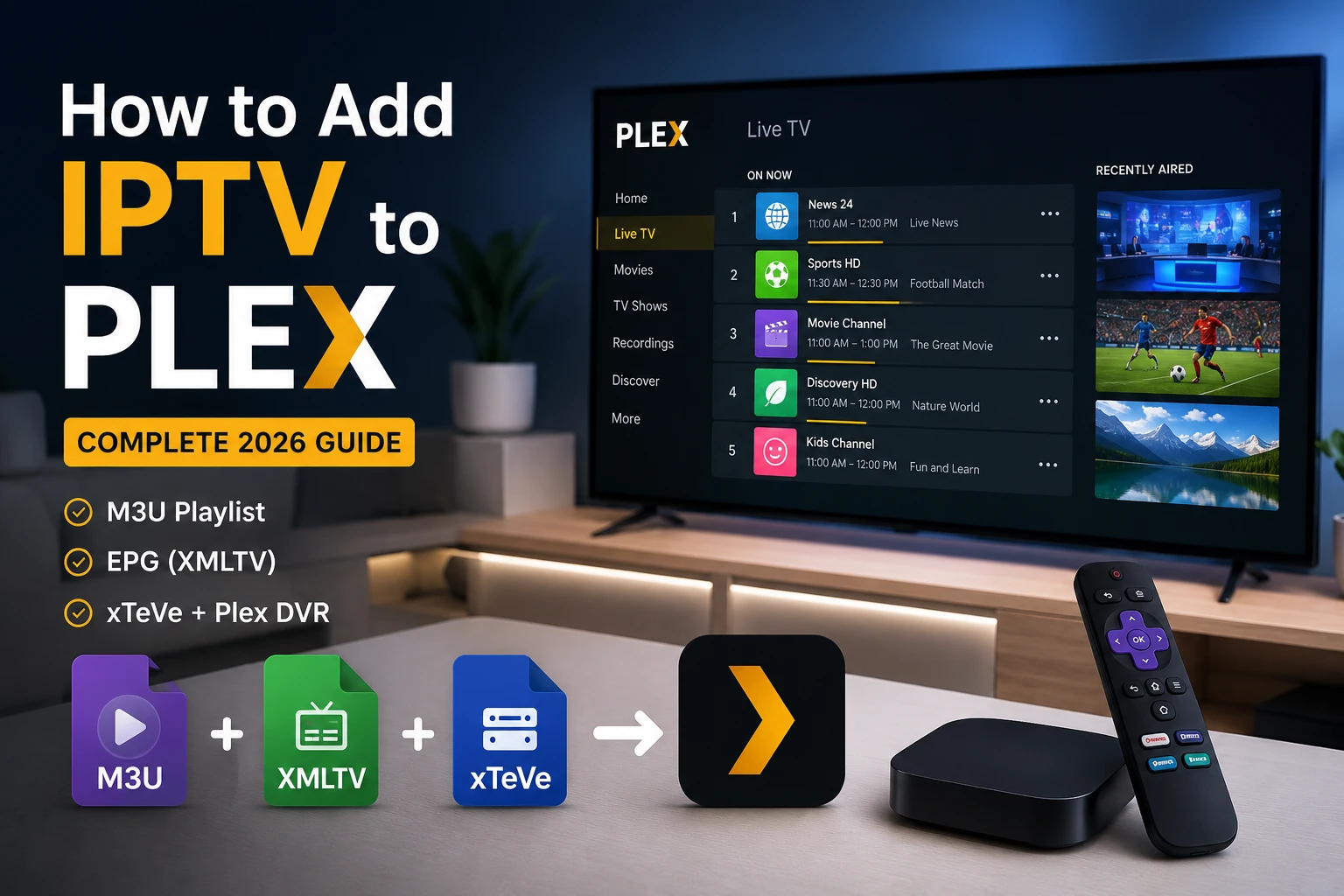
Quick answer: can you add IPTV to Plex?
The practical signal flow is: authorized IPTV source → xTeVe → Plex Live TV & DVR → Plex apps. xTeVe describes itself as an M3U proxy for Plex DVR and Emby Live TV. Plex, however, treats community-supported tuners as unofficial, so compatibility is not guaranteed and can change after updates.
This guide is designed for lawful household use. Only add channels you are authorized to access, and confirm that your provider permits use in a media-server or DVR workflow.
How the IPTV-to-Plex architecture works
Contains channel names, groups, logos, IDs, and stream URLs.
Contains programme schedules, titles, descriptions, and timestamps.
Filters sources, maps channels, creates a tuner endpoint, and can buffer streams.
Detects the tuner, scans channels, imports guide data, and serves supported Plex clients.
Plex's official Live TV documentation is primarily built around compatible tuner hardware and antennas. Its support pages explain that DVR recording requires Plex Pass and that community tuners are not officially supported. This matters because an xTeVe installation can work well while still being outside Plex's guaranteed support path.
xTeVe can use Plex-managed guide data or create an XMLTV output through its XEPG workflow. In most IPTV setups, XEPG offers more control because you can match each playlist channel to the correct XMLTV channel before Plex scans it.
What you need before you begin
Choose the right host
For a small channel list and direct streaming, an entry-level computer or NAS may be sufficient. If xTeVe or Plex must transcode streams, CPU and hardware-video support become more important. A server connected by Ethernet is usually more reliable than a laptop on Wi-Fi.
Start small
Do not expose a playlist of ten thousand channels to Plex on the first attempt. Begin with 10–30 channels that have clean IDs and matching EPG entries. Once that group scans and plays correctly, increase the selection gradually.
Complete setup: add IPTV to Plex with xTeVe
Step 1: install and verify Plex Media Server
Plex publishes a current quick-start guide for installing and configuring Plex Media Server. Complete that foundation first; xTeVe should not be used to diagnose an unclaimed or unstable Plex installation.
Step 2: download xTeVe from the project repository
Use the xTeVe project repository and documentation, not random repackaged downloads. The official project identifies xTeVe as an M3U proxy for Plex DVR and Emby Live TV. Download the build for your operating system, extract it into a dedicated folder, and ensure the configuration folder is writable by the service account.
Step 3: launch xTeVe and open the web interface
On Windows, the xTeVe documentation notes that the binary can be started directly. On Linux or a NAS, configure a service or container so the process restarts automatically after a reboot.
Step 4: add the M3U playlist
If the playlist fails, test the URL privately in a trusted player such as VLC. A working player test confirms that the source is reachable, but it does not guarantee that every stream format will work in Plex. Use the playlist troubleshooting guide for invalid URLs, expired access, and DNS problems.
Step 5: add XMLTV guide data
Plex supports XMLTV guide data during DVR setup. Plex's official instructions state that XMLTV is selected while configuring a fresh DVR. If you need to change guide-source type later, Plex may require removing and recreating the DVR.
Filter and map channels correctly
Channel mapping is the most important stage. The stream can be healthy, but Plex will still show poor guide results when playlist IDs and XMLTV IDs do not match.
Filter the playlist
- Keep only channels you are authorized to watch and actually use.
- Remove duplicates, backup streams, adult groups, shopping channels, and test entries when they are irrelevant.
- Prefer one reliable stream per channel.
- Use clear group names such as News, Sports, Movies, and Local.
- Avoid special characters that make matching difficult.
Map each channel to its XMLTV entry
| Symptom | Mapping mistake | Correction |
|---|---|---|
| Wrong show titles | Channel mapped to a similarly named region | Match location, time zone, and call sign. |
| No guide information | No XMLTV ID selected | Assign the correct guide entry and refresh XEPG. |
| Programme times shifted | Timezone mismatch | Correct server, XMLTV, and Plex timezone settings. |
| Duplicate channels | Multiple source entries activated | Keep the most reliable stream and disable duplicates. |
| Channel opens the wrong stream | Source URL or mapping row confused | Test the stream independently, then remap it. |
Connect xTeVe to Plex Live TV & DVR
Verify playback before enabling DVR
Open a live channel in the Plex Web App while you are on the local network. Test several codecs and resolutions. Review the Plex dashboard to see whether the session is Direct Play, Direct Stream, or Transcode. Direct playback normally uses fewer server resources.
Recordings and Plex Pass
Plex states that DVR recording requires an active Plex Pass subscription. Recording also requires adequate storage, file permissions, and source authorization. Use a dedicated recording folder with enough free space and a filesystem that supports large files.
Need a reliable subscription for your supported devices?
Compare the Greatest IPTV plans and contact support before ordering if you need to confirm playlist, EPG, or device compatibility. Use the service only for content you are authorized to access.
When to use FFmpeg buffering or transcoding
FFmpeg is a universal media converter that can read many input formats and remux or transcode them. In an xTeVe workflow, it may help when a stream is valid but Plex cannot consume it reliably in its original container or codec.
| Mode | What it does | CPU use | Best use |
|---|---|---|---|
| Direct/no buffer | Passes the source with minimal processing | Low | Stable, Plex-compatible streams |
| xTeVe buffer | Adds a controlled buffer between source and client | Low to moderate | Short source interruptions or timing issues |
| FFmpeg remux | Changes the container without re-encoding video | Moderate | Container or timestamp compatibility problems |
| FFmpeg transcode | Decodes and re-encodes media | High | Unsupported codecs or strict client requirements |
Use the least processing that works
Start with direct delivery. Add buffering only when logs and testing show a need. Full transcoding can solve compatibility problems, but it increases delay and server load. Hardware acceleration may help, but it requires compatible hardware, drivers, FFmpeg builds, and Plex configuration.
Watch the logs
When playback fails, compare timestamps in the xTeVe log, FFmpeg output, and Plex Media Server log. Look for HTTP status errors, authentication failures, codec errors, buffer underruns, timeouts, and broken-pipe messages. One useful log line is better than changing ten settings blindly.
Performance and reliability checklist
Remote access
Plex supports remote access to a server, but live channels add upstream bandwidth and transcoding pressure. Plex's official remote-access documentation explains the server setting used to enable access outside the local network. Before enabling it, confirm provider permissions, use strong account security, and test your upload speed.
Docker networking
When both Plex and xTeVe run in containers, the most common problem is using an address that is only valid inside one container. Plex must connect to a reachable xTeVe address, and xTeVe must advertise a tuner URL that Plex can open. Document the host IP, container ports, and network mode before troubleshooting.
Troubleshooting: IPTV does not work in Plex
| Problem | Likely cause | First action |
|---|---|---|
| Plex cannot find xTeVe | Firewall, wrong IP, container networking | Open the xTeVe web UI from the Plex host and check the tuner address. |
| Plex detects zero channels | No active xTeVe mappings | Activate a small mapped channel set and rebuild XEPG. |
| Guide is empty | XMLTV failed or wrong guide source | Validate XMLTV in xTeVe, then recreate or refresh the Plex DVR. |
| Channel spins forever | Dead source or incompatible stream | Test the URL in VLC and inspect xTeVe/FFmpeg logs. |
| Frequent buffering | Source instability, network congestion, server load | Test Ethernet, direct mode, one stream, and another channel. |
| Playback stops after minutes | Token expiry, provider limit, timeout | Confirm account limits and review HTTP errors in logs. |
| Recording fails | No Plex Pass, permissions, disk space, bad stream | Check subscription, recording folder, storage, and live playback first. |
| Wrong programme times | Timezone mismatch | Align server, XMLTV, xTeVe, and Plex timezone settings. |
Plex sees the tuner but fails during scanning
Reduce the channel list, restart both services, and repeat setup. If you previously configured a DVR with a different guide source, Plex's XMLTV instructions indicate that you may need to delete the DVR and set it up again.
Channels play in VLC but not Plex
This usually points to format, headers, redirects, timestamps, or codec handling rather than account access. Try xTeVe buffering or FFmpeg remuxing, then inspect the Plex dashboard. Do not assume that full transcoding is automatically better.
Guide refresh causes high load
Reduce the guide range, remove unused channels, and schedule updates less often. Large XMLTV files can consume memory and CPU while being parsed and mapped.
For focused help, see the EPG troubleshooting guide, buffering guide, and M3U playlist guide.
Security, privacy, and legal best practices
- Use an authorized IPTV source and respect recording restrictions.
- Keep the xTeVe interface on the local network unless you have a specific, secured remote-access design.
- Do not expose playlist credentials in logs, screenshots, backups, or support tickets.
- Update Plex, xTeVe, the operating system, Docker, and FFmpeg carefully.
- Use strong Plex account security and review authorized devices.
- Back up configurations before major updates.
- Do not share more simultaneous streams than your plan permits.
Frequently asked questions
Can Plex play an M3U playlist directly?
Plex does not natively import a normal IPTV M3U playlist as a library. A bridge such as xTeVe can present selected channels to Plex as a tuner-like device, after which Plex can use its Live TV and DVR workflow.
Do I need Plex Pass?
Plex requirements can vary by feature. Plex states that DVR recording requires Plex Pass, while some live viewing scenarios may be available without it. Check the current Plex feature and account requirements before building your setup.
Is xTeVe officially supported by Plex?
No. xTeVe is a community project that emulates a tuner. Plex warns that community-supported tuners are not officially supported, so compatibility can change and troubleshooting is your responsibility.
What is the difference between M3U and XMLTV?
M3U supplies channel and stream information. XMLTV supplies electronic program guide data such as programme titles, times, and descriptions. A useful Plex setup normally needs both.
Why does Plex detect xTeVe but show no channels?
The usual causes are unmapped channels, an invalid playlist, a channel count or filter issue, a firewall rule, or Plex and xTeVe running on networks that cannot reach each other.
Why are channel names or guide entries wrong?
Channel IDs in the M3U source must be matched correctly to XMLTV guide IDs. Review xTeVe's mapping screen, correct the pairing, save, and refresh the guide.
Can I run xTeVe in Docker?
Yes, but networking must be configured carefully. Plex must be able to reach the xTeVe web and tuner endpoints. Host networking is often simpler, while bridge networking requires correct port mappings and reachable addresses.
How many channels should I import?
Start with a small, useful set. Large playlists make mapping, scanning, and guide refreshes harder. Filter the source and expose only the channels you actually need.
What does FFmpeg do in this setup?
FFmpeg can buffer, remux, or transcode streams when direct delivery is unreliable. It can improve compatibility but consumes more CPU and may add delay, so use it only when necessary.
Why does live TV buffer in Plex?
Possible causes include an unstable source stream, insufficient server CPU, Wi-Fi congestion, transcoding, slow storage, DNS problems, or too many simultaneous streams. Test one direct stream before adding complexity.
Can I record IPTV channels with Plex DVR?
Technically, Plex DVR can record channels exposed through a compatible or community tuner workflow, but Plex Pass is required for DVR recording and the content source must permit recording. Use only authorized channels.
Is adding IPTV to Plex legal?
The software and networking method are neutral. Legality depends on whether you are authorized to receive, restream within your household, and record the content. Use licensed sources and comply with local law and provider terms.
Can Plex remote users watch these channels?
Remote access introduces bandwidth, transcoding, security, and licensing considerations. Confirm that your source permits it, secure Plex Remote Access, and test upload bandwidth before relying on remote playback.
What should I back up?
Back up the xTeVe configuration folder, playlist and XMLTV source details, channel mappings, and Plex server data according to Plex's backup guidance. Never expose credentials in screenshots or public repositories.
Final verdict
The cleanest way to add IPTV to Plex is to treat xTeVe as a controlled bridge, not as a shortcut for importing an enormous playlist. Start with Plex working normally, add a small authorized M3U source and matching XMLTV data, map a limited group of channels, and verify direct playback before enabling recording or remote access.
xTeVe is a community tool rather than an officially supported Plex tuner, so maintenance is part of the setup. Save your configuration, document your network, read logs, and retest after updates. When a stream fails, isolate the layer: source, xTeVe, FFmpeg, Plex server, network, or client.
For the best day-to-day result, combine a stable server, accurate guide data, a carefully filtered channel list, and a provider that supports your intended devices and connection count. Review Greatest IPTV plans or contact support if you need to confirm compatibility before ordering.