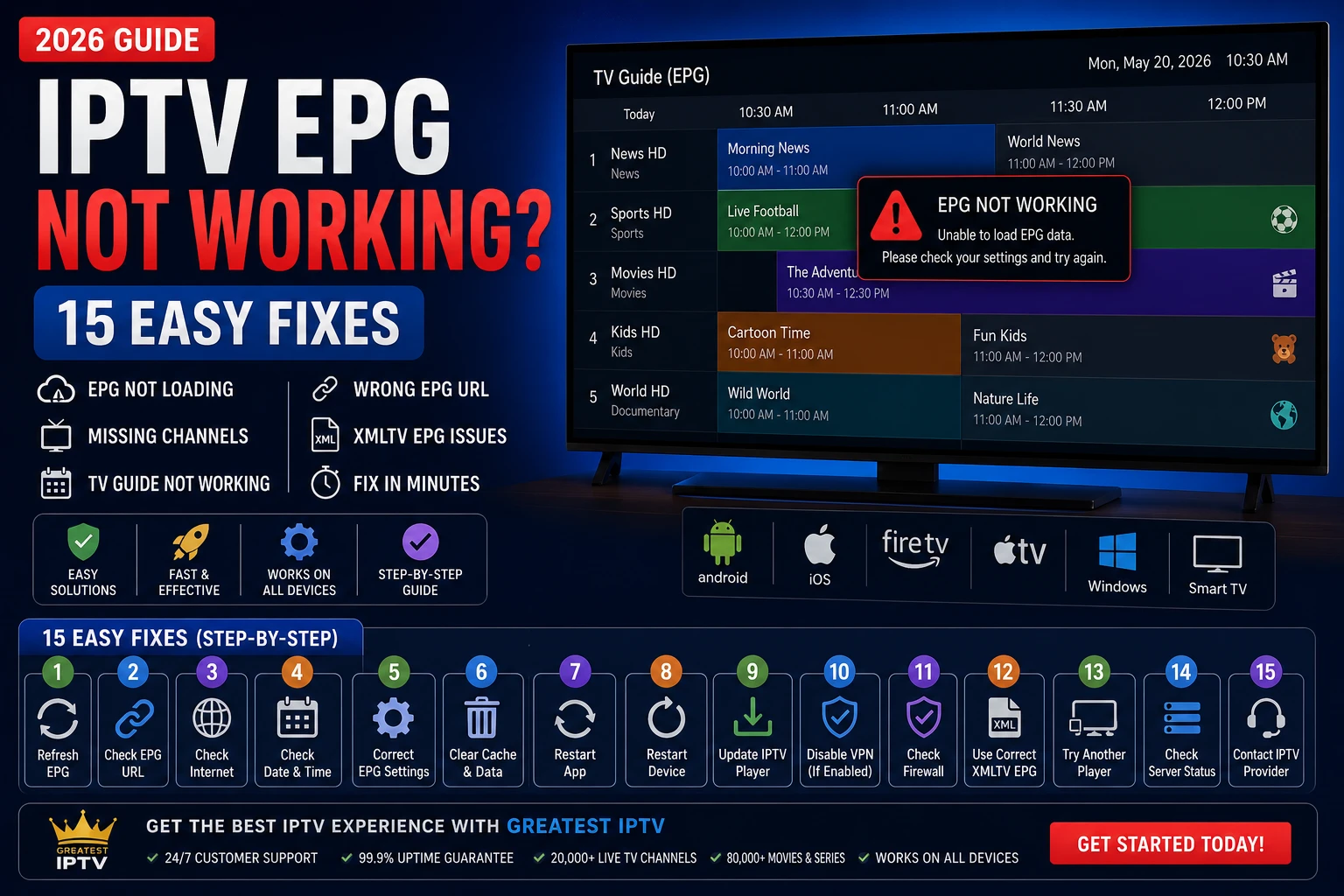
Quick Answer: How Do You Fix IPTV EPG Not Working?
If your IPTV EPG is not loading, start by validating the EPG URL or Xtream details, sync timezone settings, clear app cache, force an EPG refresh, and verify channel mapping IDs after playlist updates. Most guide failures happen because the app cannot match guide data to the channel list, even though live playback still works.
For a stable baseline during testing, compare your setup with this IPTV playlist not loading guide, this IPTV buffering troubleshooting workflow, and this IPTV Smarters Pro not working article. These related checks help isolate whether the issue is guide-only or a broader service path problem.
What Is IPTV EPG and Why It Matters
EPG stands for Electronic Program Guide. In IPTV, it is the data layer that tells your player what each channel is airing right now, what comes next, and sometimes what aired earlier. Without EPG, your channels can still play, but you lose schedule context, channel logos, proper category browsing, and accurate program metadata.
A reliable guide does more than show titles. It improves search, makes favorites more useful, helps families navigate channels quickly, and reduces random channel switching. For users who watch live sports, news, and regional channels, EPG quality often has a bigger impact on daily experience than raw app design.
What XMLTV EPG means
XMLTV is a common guide format that uses XML data to map channels and schedules. In simple terms, it is a structured file your IPTV app downloads and reads. If the file is valid and channel IDs match your playlist, the guide loads cleanly. If IDs do not match, you get empty rows or wrong show names.
If you want technical background on XML standards and metadata structures, Wikipedia has a concise reference on XMLTV. You do not need to become an XML expert, but understanding that EPG is mapped data makes troubleshooting much easier.
Xtream Codes EPG explained
With Xtream-based logins, EPG is often integrated into the portal response rather than manually pasted as a separate XMLTV URL. That sounds simpler, but guide issues can still happen if channel mappings changed, the app is caching old data, or timezone settings are inconsistent between device and provider data.
Why the IPTV TV Guide Stops Working
When users report that the TV guide suddenly disappeared, the cause usually falls into one of these categories:
- Wrong EPG URL: a copied link has expired, changed, or includes hidden characters.
- EPG not loading after app update: stale cache or changed parser behavior.
- EPG missing channels: channel IDs in playlist no longer match XMLTV IDs.
- Wrong timezone: guide data exists but appears shifted by one or more hours.
- Provider-side feed refresh lag: source guide is delayed or partially updated.
- Aggressive refresh settings: frequent polling creates failed sync loops on low-memory devices.
A useful signal: if live channels play but guide is empty, the problem is almost always EPG ingestion or mapping, not your internet connection alone. If live channels and EPG are both unstable, check your broader stack with buffering diagnostics and then revisit EPG setup.
EPG Troubleshooting Table: Symptoms, Causes, and Fast Fixes
| Symptom | Likely Cause | Fastest Check | Best First Fix |
|---|---|---|---|
| EPG completely blank | Broken EPG URL or failed auth on guide source | Open EPG URL in browser and verify response | Re-paste URL and run manual refresh |
| Only some channels have guide data | Channel ID mapping mismatch | Compare channel names and IDs after playlist update | Re-map channels or reload playlist then EPG |
| Guide time is wrong by 1 hour | Timezone or DST mismatch | Check device timezone and app timezone options | Set both to automatic or correct region manually |
| Guide refresh fails repeatedly | Corrupt cache or overloaded app data | Clear cache and observe one clean refresh cycle | Clear cache, restart, then refresh once |
| Xtream channels play but guide empty | EPG disabled or stale mapping in player | Toggle EPG source and force full update | Remove and re-add account profile |
Best IPTV Apps for Smart TVs: Practical EPG Comparison
A guide problem is not always a provider issue. Some apps handle EPG parsing and mapping better than others, especially on older TVs. The table below compares popular players used in real households. The key point is to pair a stable app with a reliable subscription source such as Greatest IPTV, instead of assuming any app can hide a weak guide feed.
| App | Advantages | Disadvantages | Supported Devices | Ease of Use | Streaming Quality | Best Use Cases |
|---|---|---|---|---|---|---|
| IPTV Smarters Pro | Familiar UI, supports Xtream and M3U, easy for multi-account households | Can need cache cleanup and refresh tuning on some TVs | Android TV, Fire TV, mobile, selected Smart TVs | Easy | Good to very good | Families needing a straightforward all-purpose player |
| TiviMate | Excellent live TV layout, robust EPG controls, favorites and advanced guide views | Slight learning curve for beginners | Android TV, Google TV, Fire TV | Moderate | Very good | Power users wanting cable-style guide navigation |
| SmartOne IPTV | Simple setup flow for TV-first users, clean interface | Less advanced customization than Android-focused apps | Samsung, LG, Android TV | Easy | Good | Users prioritizing simple setup on Smart TVs |
| Smart IPTV | Long-running TV app, straightforward playlist upload model | Dated UX and limited advanced guide controls | Samsung, LG, selected Smart TVs | Moderate | Good | Users familiar with legacy Smart TV workflows |
| IBO Player | Quick onboarding, clean UI, broad Smart TV appeal | Feature depth varies by platform and activation model | Samsung, LG, Android TV | Easy | Good | Low-friction deployment on living-room TVs |
| XCIPTV | Strong Xtream handling, modern UI, good EPG and catch-up options | Needs initial tuning for best results on some devices | Android TV, Google TV, Fire TV, mobile | Moderate | Very good | Users wanting stronger control without heavy complexity |
| OTT Navigator | Advanced filtering, deep playlist management, precise guide control | Not beginner-friendly | Android TV, Google TV, Fire TV | Advanced | Very good | Experienced users with large channel lists |
| Televizo | Lightweight app with clean guide flow and good performance | Fewer premium features than some competitors | Android TV, mobile | Easy | Good to very good | Users seeking responsive performance on modest hardware |
If you are still selecting the right player, this full best IPTV apps for Smart TV comparison and this dedicated TiviMate setup guide can help you choose faster. For XCIPTV users, this XCIPTV setup walkthrough covers practical defaults.
15 Easy Fixes for IPTV EPG Not Working
Follow these fixes in order. The sequence matters because it moves from highest-probability and lowest-risk checks to deeper app rebuild steps.
Fix 1: Verify the EPG source URL or Xtream portal details
A single typo can break the guide feed. Re-copy the source directly from your provider panel. If you use XMLTV, make sure the URL is complete and starts with the right protocol. If you use Xtream, verify server URL, username, and password without extra spaces.
Fix 2: Confirm XMLTV file accessibility
Open the XMLTV URL in a browser. You should see structured content, not a blocked page or authentication error. If the file does not load in a browser, your app cannot load it either.
Fix 3: Refresh playlist first, then refresh EPG
Order matters. If channel IDs changed after a playlist update, refreshing EPG before playlist can keep stale mappings. Always update channels first, then force an EPG refresh.
Fix 4: Correct timezone and daylight saving settings
Wrong timezone is a top reason for guide data appearing offset. Set your device clock correctly, then check timezone inside the IPTV app. If available, enable automatic timezone handling and confirm DST behavior.
Fix 5: Force a full EPG reload, not incremental sync
Incremental updates are fast but can preserve broken data. Run a full refresh once to rebuild guide cache. Then return to normal incremental updates.
Fix 6: Clear player cache
Corrupt cache can block new guide data. Clear cache from device settings, restart the app, and refresh EPG once. If guide still fails, proceed to app data reset.
Fix 7: Remove and re-add EPG source
Delete the current guide source entry, add it again manually, and avoid copy-paste artifacts from messaging apps. This often resolves hidden character issues in URLs.
Fix 8: Update the IPTV app
Outdated app versions may parse XMLTV feeds incorrectly after upstream format updates. Install the latest stable version, then rerun a clean EPG import.
Fix 9: Restart the device and router
Temporary network or DNS states can interrupt guide downloads without affecting previously cached channels. A full reboot clears many transient errors quickly.
Fix 10: Reduce refresh frequency
If EPG refresh is set too aggressively, low-memory devices can fail repeatedly. Use a sensible interval such as every 6-12 hours instead of constant background polling.
Fix 11: Check channel mapping manually for missing groups
When only some channels are missing guide data, mapping is usually the issue. Re-map affected channels to correct EPG IDs in apps that support manual mapping options.
Fix 12: Test with another app to isolate parser behavior
Load the same account in another trusted player. If guide works there, your original app configuration is likely the issue. This is the fastest way to separate provider feed problems from app parser issues.
Fix 13: Rebuild account profile in the app
Delete the account profile in your player, then add it fresh. This clears stale links between old channel caches and new guide sources, especially after provider-side changes.
Fix 14: Validate network policies and DNS behavior
Some network filters can block guide feed endpoints. Test on a different network, then compare results. If needed, review official platform docs from Android Developers, Google TV Help, Amazon Fire TV, and Apple Support.
Fix 15: Contact provider support with complete diagnostics
If EPG remains broken, send a precise report: app name and version, device model, EPG source type (XMLTV or Xtream), timezone, sample channels with missing data, and timestamp of your last refresh attempt. This dramatically shortens resolution time.
Warning
Do not change ten settings at once. Change one variable, test, document result, then move to the next step. Controlled troubleshooting prevents false fixes and recurring failures.
EPG Setup Guide for TiviMate, XCIPTV, and IPTV Smarters Pro
TiviMate EPG setup
- Add your playlist (Xtream or M3U) and verify channels load first.
- Open EPG settings and add source URL if needed.
- Set timezone and run a full guide update.
- Re-map any channels with missing schedule data.
- Set refresh interval and enable update on app start.
Use this detailed TiviMate setup guide if you need a full install and configuration walkthrough.
XCIPTV EPG setup
- Login with Xtream details or add M3U plus EPG source.
- Open settings and force a guide refresh.
- Confirm device and app timezone alignment.
- Clear cache if guide appears partially loaded.
- Restart app and verify channel categories.
For a clean baseline, follow this XCIPTV player setup tutorial.
IPTV Smarters Pro EPG setup
- Log in with valid Xtream or playlist details.
- Open TV Guide section and trigger refresh.
- Check app update status and clear cache if needed.
- Verify timezone and 12h/24h display options.
- Re-add profile if channel-guide mapping stays broken.
If your app still fails, use this IPTV Smarters Pro troubleshooting guide for deeper checks.
Best EPG Settings for Stability
- Refresh interval: every 6-12 hours for most users.
- Update sequence: playlist first, then EPG.
- Timezone: automatic where possible, manually verified if offsets persist.
- Cache maintenance: clear cache only when issues appear, not daily.
- App updates: keep player current but avoid unstable beta builds.
For users comparing subscriptions while tuning app settings, check current pricing and proceed through secure checkout when you are ready. If you need tailored help for your device, use the contact page with your diagnostics.
Related Search Intent You Should Know
Users struggling with guide data often search adjacent issues. Solving these in the same session reduces repeat problems:
- epg not loading on smart tv
- iptv tv guide not working after update
- xmltv epg setup for m3u
- xtream codes epg missing channels
- how to fix iptv epg timezone
- epg setup guide for tivimate
- best iptv app with stable epg
Addressing playlist health and playback quality alongside EPG setup usually gives the best outcome, so keep this playlist repair guide and this buffering guide in your troubleshooting toolkit.
Frequently Asked Questions
That pattern usually means your live stream path works, but guide source parsing or channel mapping is failing inside the app.
XMLTV often uses a separate guide URL, while Xtream usually serves guide data via account API. Both can work well when mappings are correct.
Refresh playlist first, then EPG, and manually re-map channels that still show empty schedules.
A timezone or daylight saving mismatch in either device settings or app configuration is the usual cause.
Yes. Cache corruption is a common source of stale or empty guide data, especially after app updates.
It depends on your platform, but TiviMate and XCIPTV are strong on Android-based devices, while SmartOne IPTV and IBO Player are common TV-first choices.
Use automatic refresh every 6-12 hours, then run manual refresh when troubleshooting specific guide errors.
It can. A VPN may help in some networks but can also alter routing and break guide endpoint access. Test with and without it.
Only when persistent mapping or loading issues remain after standard fixes. Frequent rebuilds are not necessary for healthy setups.
Send full diagnostics to support and test the account on a second app and network so you can pinpoint whether the issue is app-side or feed-side.
Conclusion: Build a Stable Guide Experience, Not a Temporary Patch
When your IPTV EPG is not working, the fastest solution is a structured process: validate source, sync timezone, clear stale data, refresh in the correct order, and verify channel mapping. Most guide failures are predictable and fixable when you troubleshoot with discipline.
In real-world usage, the best long-term result comes from combining a reliable subscription with the right app for your device family. If you want a smoother daily experience with less guide maintenance, Greatest IPTV paired with a stable player such as TiviMate, XCIPTV, IPTV Smarters Pro, SmartOne IPTV, Smart IPTV, or IBO Player is a practical route for many households.
Want a cleaner IPTV setup with stable EPG behavior?
Review plans, pick the right app for your TV ecosystem, and get support when needed so your guide and channels stay aligned.