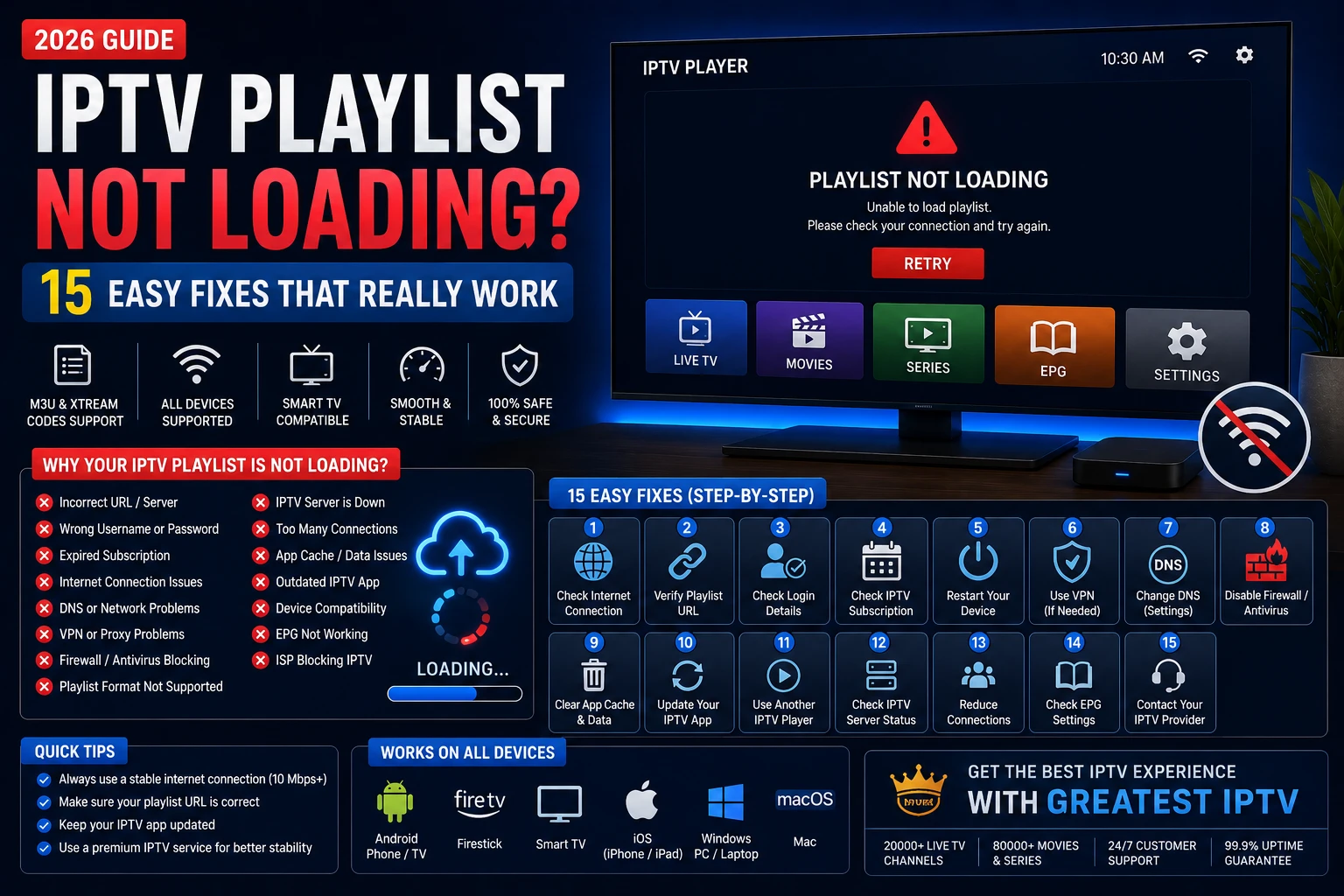
Quick Answer: Why Is My IPTV Playlist Not Loading?
If your IPTV playlist is not loading, check the playlist format first, confirm the login details, then test the same account on another app or device. In most cases, the error comes from one of five places: the playlist link is wrong, the subscription is expired, the app does not support the format you uploaded, your DNS or VPN is interfering, or the provider is having a server-side issue.
For a fast sanity check, compare the result with a stable setup like Greatest IPTV pricing plans, read the IPTV Smarters Pro not working guide, and review the IPTV buffering troubleshooting article if the app loads but playback fails later.
Why an IPTV Playlist Fails to Load
An IPTV playlist is only as reliable as the data behind it. If the app cannot reach the playlist URL or portal, the channels never populate. If the app reaches the source but the credentials are invalid, the lineup remains empty. If the playlist loads on one device but not another, the issue is often app-specific rather than subscription-wide.
The most common failure points are:
- Bad M3U URL: one missing character breaks the link.
- Wrong Xtream Codes details: username, password, or server URL does not match.
- Expired line: the provider has already deactivated the account.
- Unsupported player: the app expects Xtream Codes but you pasted an M3U file, or the device app cannot read the format correctly.
- Network filtering: DNS, VPN, firewall, antivirus, or ISP rules stop the app from reaching the source.
If you want a stronger baseline while testing, keep a clean setup in mind by checking the TiviMate setup guide, the XCIPTV Player setup guide, and the best IPTV apps for Smart TV comparison.
Troubleshooting Table: Match the Error to the Likely Cause
| Symptom | Most Likely Cause | Fastest Check | Best First Fix |
|---|---|---|---|
| Playlist spins forever | Bad M3U link or blocked portal URL | Open the URL in a browser or test another device | Re-copy the link and remove extra spaces |
| Xtream login fails | Wrong username, password, or server address | Compare credentials with your provider panel | Re-enter all fields carefully |
| No channels appear | Expired line or unsupported playlist format | Try the same login on another player | Refresh the playlist and verify subscription status |
| Playlist works on phone but not TV | Smart TV app compatibility issue | Test IPTV Smarters Pro, TiviMate, or XCIPTV | Switch to a more compatible player |
| App says network error | DNS, VPN, firewall, or ISP filtering | Disable VPN and retry on mobile hotspot | Use a stable DNS and retest |
Best IPTV Apps for Smart TVs Compared
Choosing the right player matters because a poorly matched app can look like a subscription problem. The best IPTV apps for Smart TVs are the ones that support your device ecosystem, read your playlist format cleanly, and stay stable when EPG, favorites, and catch-up are enabled. The comparison below is practical rather than theoretical.
| App | Advantages | Disadvantages | Supported Devices | Ease of Use | Streaming Quality | Best Use Cases |
|---|---|---|---|---|---|---|
| IPTV Smarters Pro | Widely known, supports Xtream Codes and M3U, good account management, familiar interface | Can be inconsistent on some TVs, occasional buffering complaints, performance depends on device | Android TV, Fire TV, mobile, some Smart TV platforms | Easy | Good when configured correctly | Users who want a flexible all-purpose player |
| TiviMate | Excellent live TV layout, strong EPG handling, channel groups, favorites, recording features | Best on Android TV devices; setup can feel advanced for beginners | Android TV, Google TV, Fire TV | Moderate | Very good | Users who want a polished cable-style live TV experience |
| SmartOne IPTV | Simple Smart TV-focused design, easy activation flow, good for non-technical users | Feature set is lighter than advanced players, depends on app-store availability | Samsung, LG, Android TV, other Smart TV platforms | Easy | Good | Users who want a straightforward Smart TV setup |
| Smart IPTV | Long-standing app, simple upload model, popular on TVs with native app support | Interface feels dated, support varies by platform, activation workflow can confuse beginners | Samsung, LG, selected Smart TVs | Moderate | Good | Users who already know the app and want a minimal setup |
| IBO Player | Clean interface, easy playlist loading, good Smart TV support, fast first-time setup | Some functions depend on device and license model, not as deep as advanced Android TV players | Samsung, LG, Android TV, other supported TVs | Easy | Good | Users who want a clean TV app with low friction |
| XCIPTV | Good Xtream support, modern layout, external player support, EPG and catch-up options | Can need a little tuning, some devices perform better than others | Android TV, Google TV, Fire TV, mobile | Moderate | Very good | Users who want more control and customization |
| OTT Navigator | Strong for power users, flexible playlist organization, advanced live TV controls | Not as beginner-friendly, interface can feel dense | Android TV, Google TV, Fire TV | Moderate | Very good | Advanced users who want fine-grained control |
For most viewers, the right combination is a stable Smart TV app plus a reliable subscription such as Greatest IPTV checkout. That pairing removes a lot of guesswork because you can separate app issues from subscription issues much faster.
15 Easy Fixes for IPTV Playlist Loading Problems
Use these fixes in order. Do not skip ahead unless you already ruled the earlier steps out. The goal is to isolate the problem, not to change every setting at once and make the error harder to trace.
1. Confirm the playlist URL or Xtream Codes details exactly
The fastest failure is also the most common one: a mistyped URL or a single wrong character in the username or password. Re-copy the M3U link from your provider dashboard and paste it into a notes app first so you can visually inspect it before adding it to the player.
2. Check whether the subscription is still active
If the playlist worked before and suddenly stopped everywhere, the account may have expired. Test the line on another device, review your provider dashboard, or contact support. An expired line often produces the same symptom as a bad link, so do not assume the app is broken first.
3. Match the format to the app
Some apps expect an M3U URL, some want an M3U file, and others work best with Xtream Codes. If you paste Xtream credentials into a field that expects a playlist URL, the app may appear to load but will never populate channels.
4. Test the playlist on another player
If the same account works in TiviMate but fails in Smart IPTV, the issue is likely app compatibility rather than the subscription. This is one of the fastest ways to determine whether the fault is in the player or the service.
5. Remove extra spaces and hidden characters
Copying a playlist from email, chat, or a browser sometimes adds hidden spaces or line breaks. Paste the link into a plain text field first, then copy it into the player. A clean paste can fix a surprisingly large share of iptv playlist error messages.
6. Clear cache and app data
Corrupt cache is a common reason an app keeps opening an old playlist or refusing a fresh login. Clear cache first, and if that does not work, clear the app data completely before re-adding the account. This step is especially effective on Android TV and Fire TV devices.
7. Reboot the device and router
Restarting both the streaming device and the router can clear temporary network states and session conflicts. Do not underestimate this step. A router restart often resolves transient DNS and routing problems that are hard to spot otherwise.
8. Switch from Wi-Fi to Ethernet when possible
A weak wireless signal may not stop the app from opening, but it can block large playlist fetches or cause timeouts during login. If the TV or streaming box supports Ethernet, use it. For Smart TVs, a wired connection usually gives the best consistency.
9. Test with a different DNS server
DNS problems can make a valid IPTV URL look broken. Try a trusted DNS setup and then reload the playlist. Official device help from Google TV support and Apple Support can help you confirm device-level network settings if you are unsure where DNS is configured.
10. Temporarily disable the VPN
VPNs are useful when an ISP is filtering traffic, but they can also break a working setup by changing the route to the IPTV server. Test the playlist with the VPN off first, then with it on. The result tells you whether the VPN is helping or hurting.
11. Check firewall or antivirus blocking
On computers and some network setups, firewall rules or security software may block IPTV player traffic. If you are testing on a Windows machine or network with strong filtering, allow the player in the firewall and retest. Device-specific help from Android Developers and Amazon Fire TV can also help when you are diagnosing platform behavior.
12. Update the IPTV player
An older version of the app may no longer communicate properly with the playlist source or may have a bug that was fixed in a newer build. Update the player, then re-enter the playlist. This is especially important if the app worked months ago and now fails after a device update.
13. Try a different Smart TV app
Sometimes the playlist is fine, but the app simply is not the best fit for the device. If IPTV Smarters Pro is struggling, try the best IPTV apps for Smart TVs comparison to choose a better option for your platform. For live TV-focused users, TiviMate is often a strong choice, while XCIPTV can be a good alternative for users who want more flexibility.
14. Re-enter the playlist from scratch
Delete the existing login, clear the app data if needed, and add the subscription again instead of editing the old entry. Rebuilding the configuration from scratch removes stale data and reduces the chance that the app is referencing an outdated portal.
15. Contact your IPTV provider with exact details
If none of the above works, contact the provider and include the exact error message, the device model, the app name, the time the issue started, and whether you tested M3U, Xtream, and another player. If you need direct help from the team, use the contact page and include the same details. Good support tickets get solved faster.
Expert tip
When troubleshooting, change one variable at a time. If you switch the app, VPN, DNS, and device all at once, you will not know which change actually fixed the problem.
Which App Is Best for Your Smart TV?
If you are trying to solve a playlist-loading problem on a Smart TV, the app you choose matters almost as much as the subscription itself. Smart TV ecosystems are not equal. Samsung and LG users often need a different app flow than Android TV or Fire TV users, and that is why one app can work perfectly on one screen while failing on another.
For a simple path, use a player that matches your device family and then pair it with a dependable service. That is where a subscription like Greatest IPTV home becomes useful in practice: it gives you a stable service baseline while you test the app and device layer around it. If you want to compare plans before you test, check pricing and, if you are exploring business use, review the IPTV reseller page.
Best app choice by platform
- Android TV and Google TV: TiviMate or XCIPTV usually offer the best mix of speed, EPG handling, and control.
- Fire TV and Firestick: IPTV Smarters Pro, TiviMate, and XCIPTV are common choices depending on preferences.
- Samsung and LG Smart TVs: SmartOne IPTV, Smart IPTV, and IBO Player are often the simplest starting points.
- Mixed-use households: IPTV Smarters Pro can be easier for families because the interface is familiar and widely recognized.
Official Resources Worth Bookmarking
When troubleshooting a Smart TV or streaming device, official manufacturer guidance is more reliable than random forum advice. Use device documentation to confirm that your TV, box, or streaming stick is properly connected and updated before blaming the playlist.
- Android Developers TV documentation for Android TV and Google TV guidance.
- Google TV support for platform-level settings and updates.
- Apple Support for Apple TV and TV app reference material.
- Amazon Fire TV for Fire TV device information.
- Samsung Support for Samsung TV troubleshooting and updates.
- LG Support for LG Smart TV help and compatibility checks.
Expert Tips and Warnings
Use these habits to avoid repeat playlist failures
- Save your portal details in a secure note so you can re-enter them exactly if needed.
- Prefer wired Ethernet for the main TV whenever possible.
- Keep only one active VPN or DNS tool on the device at a time.
- After app updates, re-test the playlist before changing additional settings.
- Use the same app version on multiple devices if you want consistent troubleshooting behavior.
Warnings
- Do not keep retrying the same bad login 20 times in a row; it wastes time and hides the true problem.
- Do not assume a working phone app proves the Smart TV app is healthy; the device layer may still be the issue.
- Do not clear every setting at once if you still want to know what actually fixed the error.
- Do not use random APKs or unofficial app stores on devices unless you fully trust the source.
Frequently Asked Questions
The most common reasons are a bad URL, wrong Xtream login details, an expired subscription, or a Smart TV app that does not handle the playlist format correctly.
Some apps parse Xtream Codes more reliably than raw M3U URLs. In that case, the playlist source is fine, but the URL format or app parser is the weak point.
Start with the login details, then clear cache, test another app, and remove VPN or DNS changes one at a time until the source of the issue becomes clear.
Yes. If DNS cannot resolve the playlist or portal domain, the app will fail before it can fetch channels. A stable DNS setup often solves this quickly.
Sometimes. A VPN can help if your ISP filters traffic, but it can also create new routing problems. Test both ways and keep whichever version works best.
TiviMate and XCIPTV are common alternatives on Android TV and Fire TV, while SmartOne IPTV, Smart IPTV, and IBO Player are often used on Smart TVs.
That usually means the TV app, cache, or device network path is the problem, not the subscription itself. Compare the same login in another player on the TV.
No. Clearing cache usually removes temporary app data. If you clear full app data, you may need to log in again, but the subscription itself is not deleted.
If the same login fails everywhere and the provider confirms the line is inactive, the subscription has likely expired or been disabled.
Send the device model, app name, screenshot of the error, the time it started, and whether M3U, Xtream, VPN, DNS, or another app was tested already.
Conclusion: Fix the Cause, Not Just the Symptom
An IPTV playlist not loading is frustrating, but it is usually fixable when you troubleshoot in the right order. Verify the login details, confirm the subscription is active, match the app to the playlist format, test your network path, and only then move to deeper device changes. That approach saves time and helps you identify the real issue instead of guessing.
If you want a cleaner long-term setup, use a reliable IPTV subscription, pair it with one of the better Smart TV players, and keep your device configuration simple. That is the easiest way to avoid repeated iptv playlist not working problems over time.
Ready for a more stable streaming setup?
Choose a dependable service, match it with the right player, and keep your setup easy to maintain. Start with the plans, then test your preferred app and device combination.